Passcode Bypass for iPhone & iPad Service

Passcode Bypass for iPhone & iPad

iRemove 软件

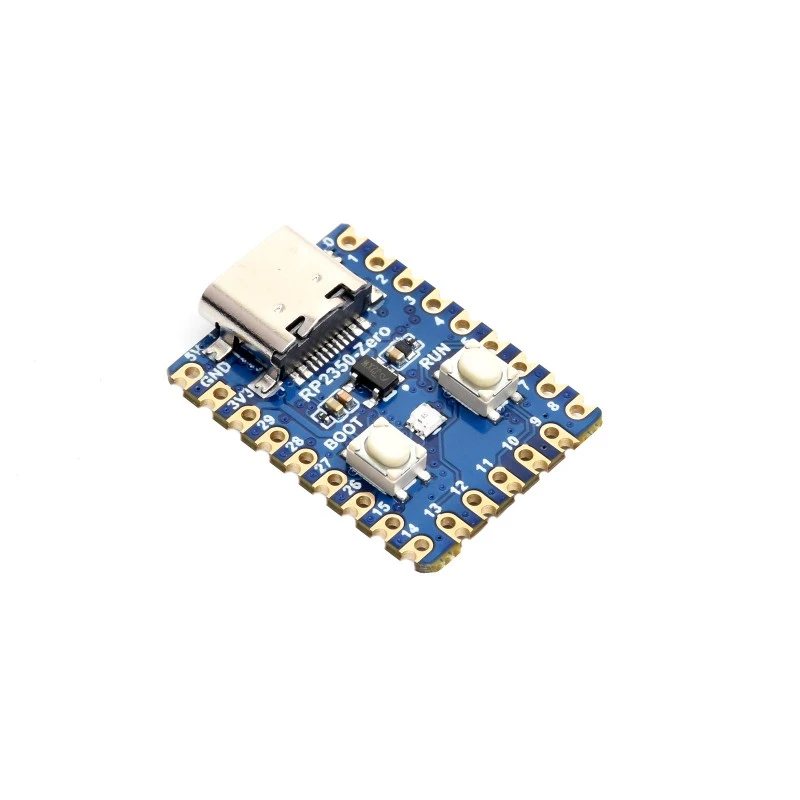
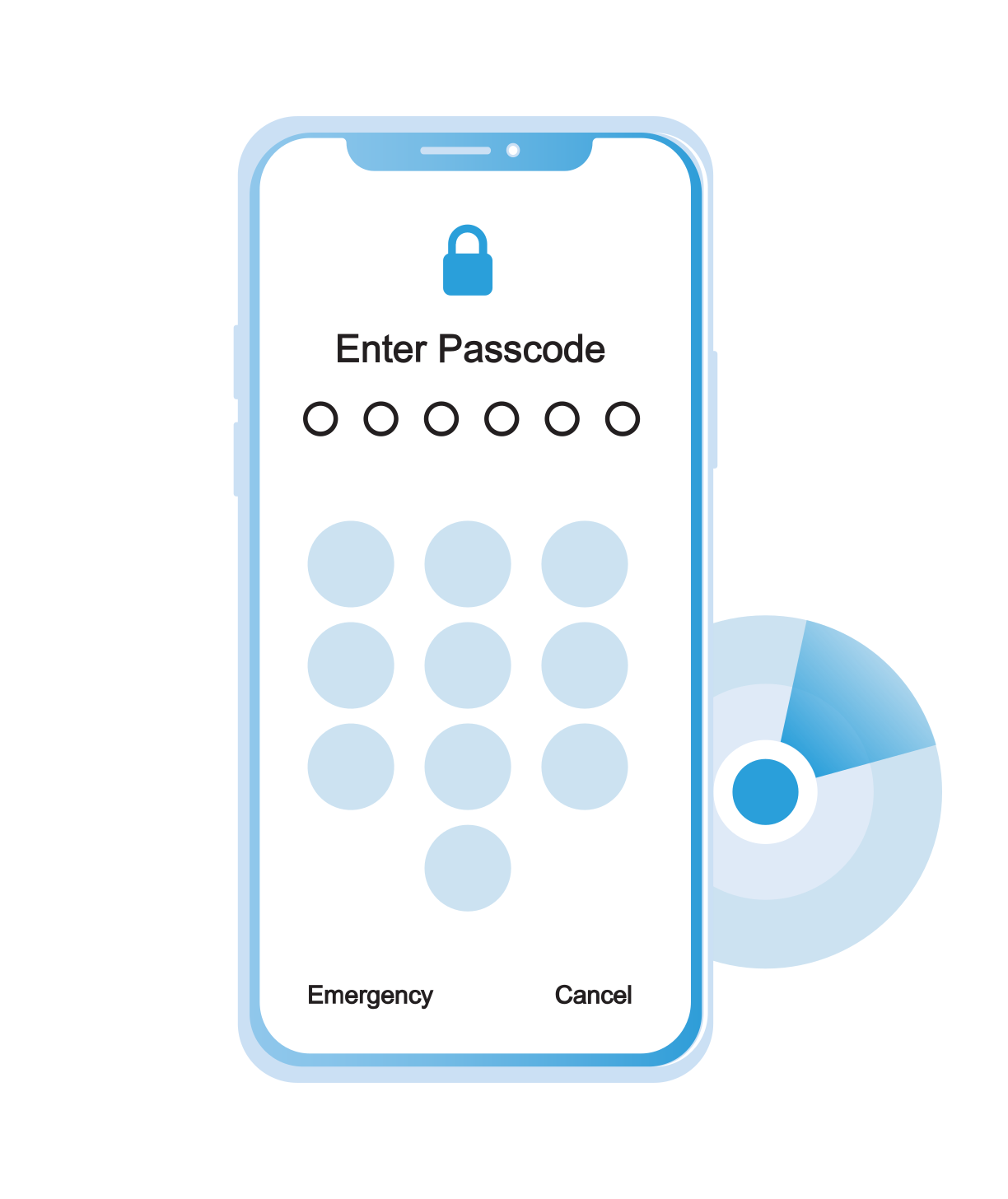
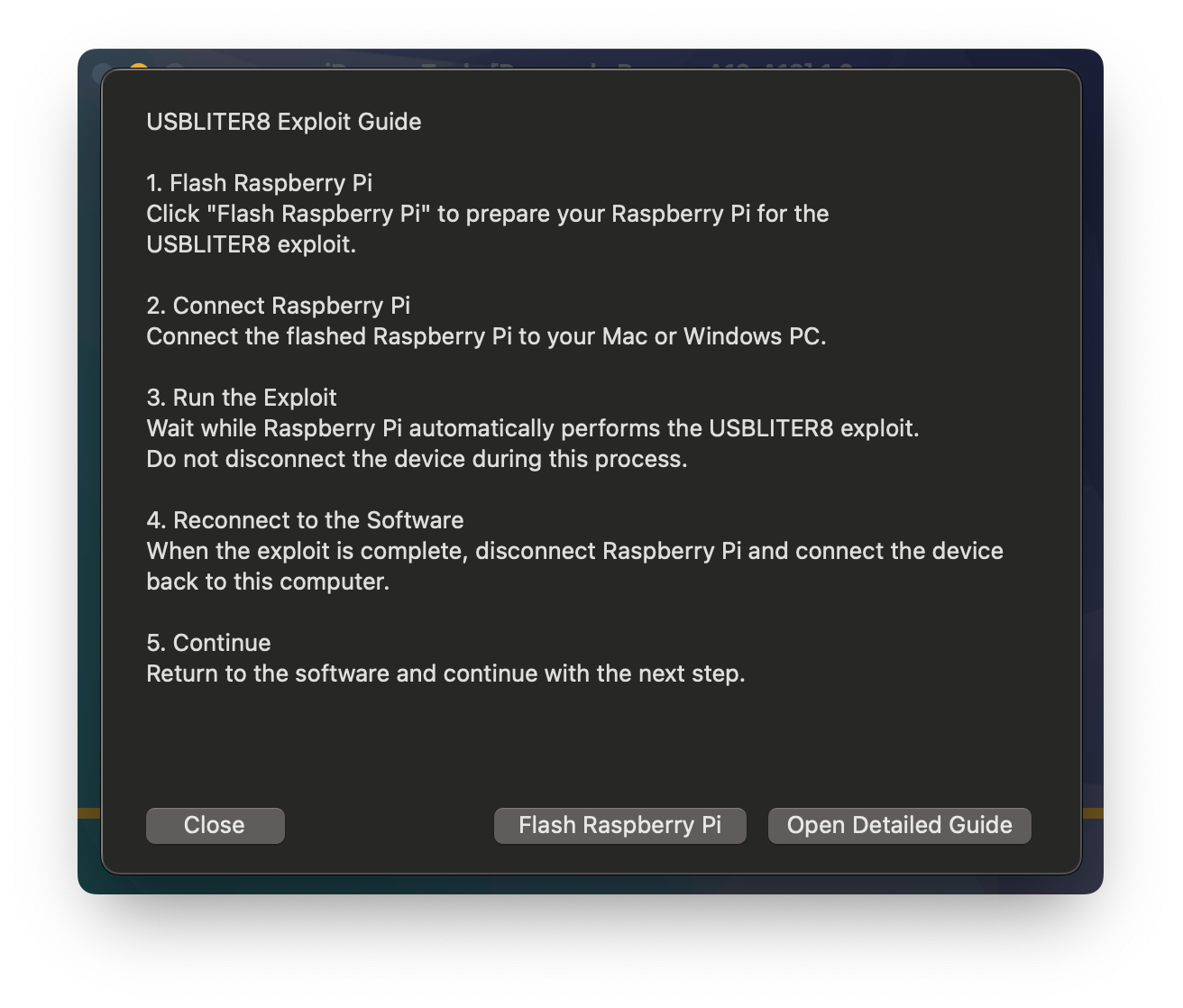
Bypass the passcode (PIN) lock screen on supported A12 and A13 iPhone and iPad models while retaining cellular signal functionality. Compatible devices include iPhone XR, XS, XS Max, iPhone 11 series, iPhone SE 2 and selected iPad models. Check compatibility, view the $29.99 service price, prepare your RP2350 module and complete the process using iRemove Software and USBLiter8.

  • 支持的 iOS 版本:
    • iOS 18.x.x - iOS 26.x.x
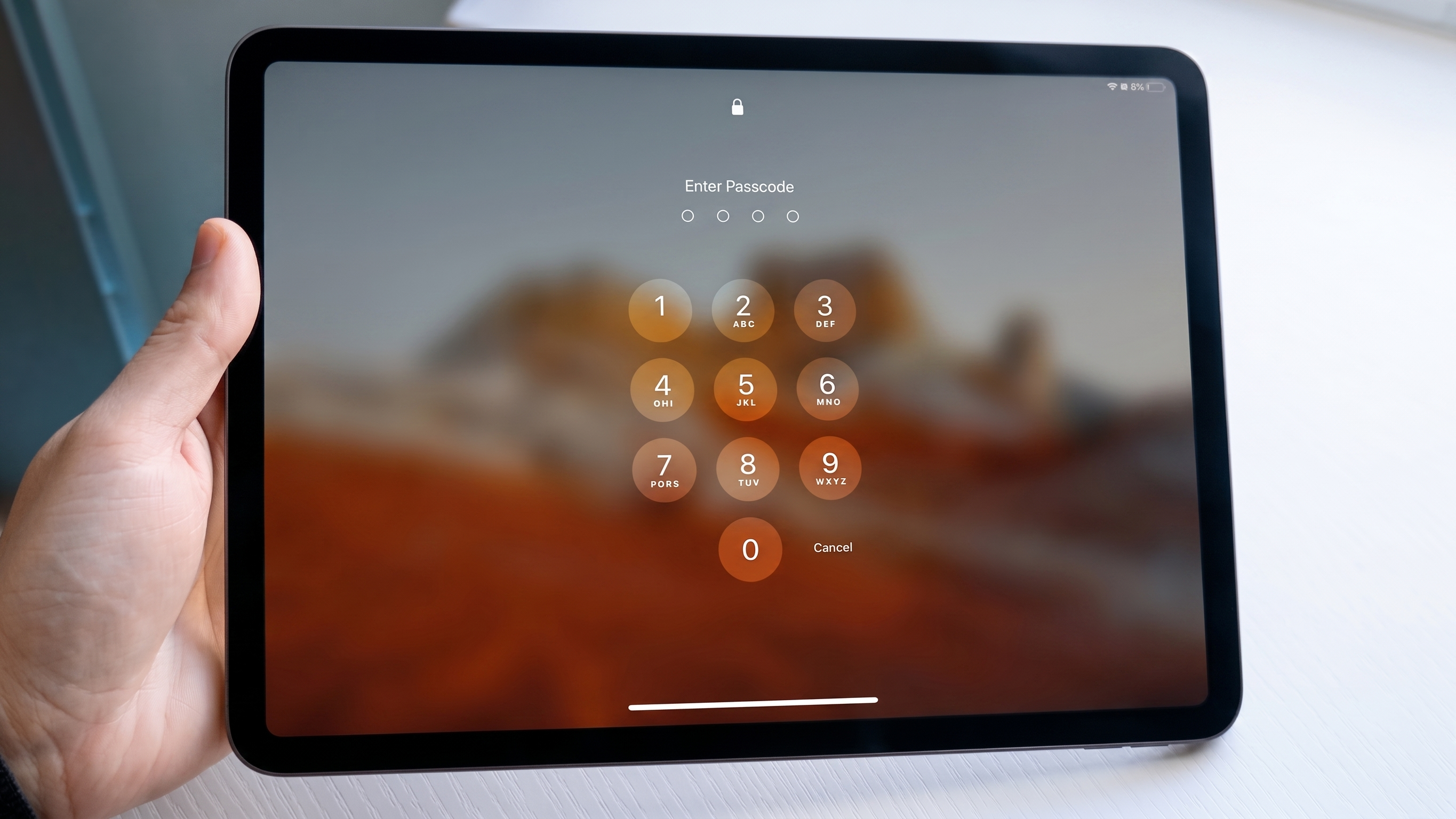
    • The device must be on the PASSCODE-LOCKED SCREEN. This service does not support devices in other states.
  • Additional Equipment Required:
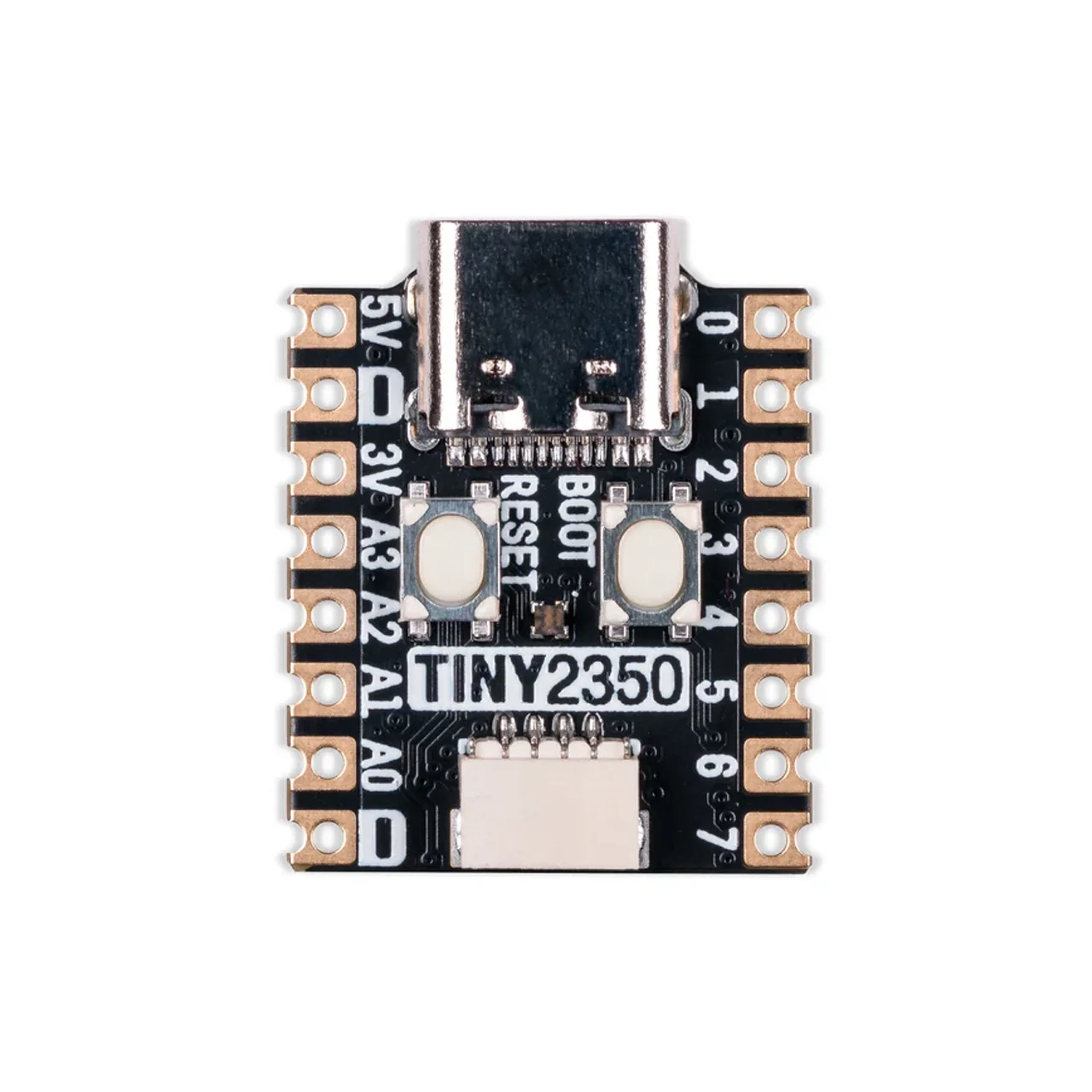
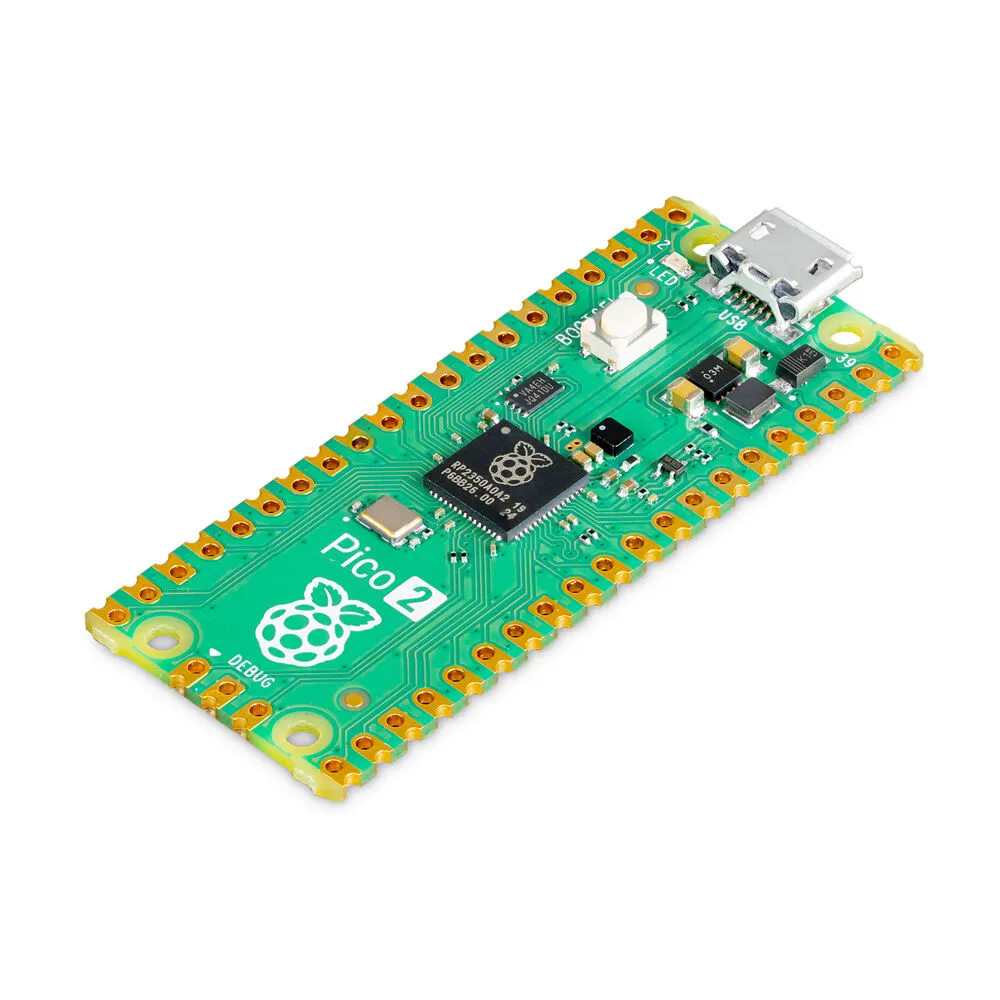
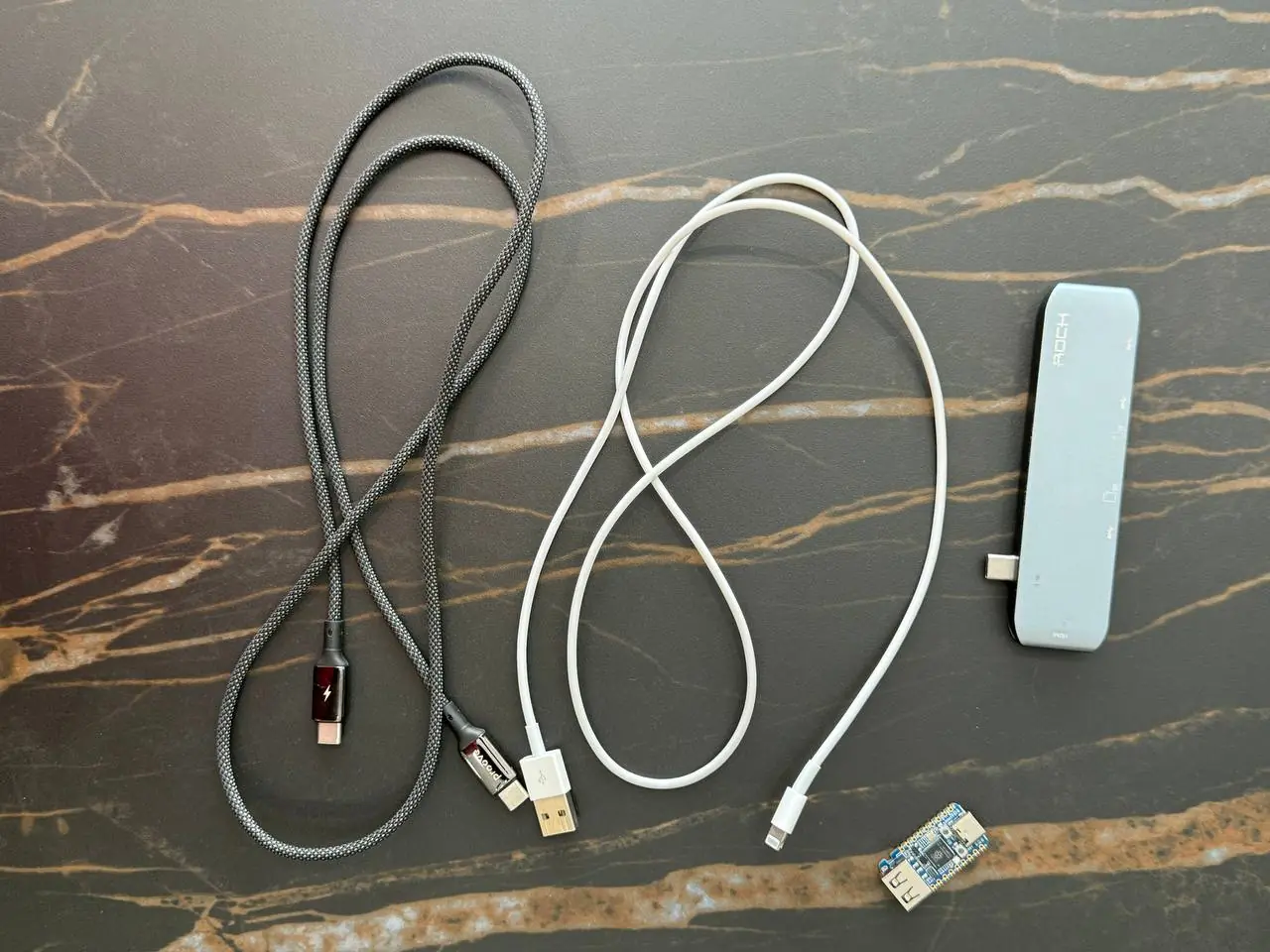
    • This service cannot be completed using the iRemove software alone. You will also need a compatible Raspberry Pi Pico module, the required USB data cables, and physical access to the device.

Supported iPhone and iPad Models & Service Pricing

Find your supported iPhone or iPad model and view the current passcode bypass service price. Get instant delivery, secure activation, and support for compatible A12 and A13 devices.

Pricing
Model Service Name Price Model Service Name Price
iPhone11,2 iPhone XS $29.99 iPhone11,8 iPhone XR $29.99
iPhone11,4 / 11,6 iPhone XS Max $29.99 iPhone12,1 iPhone 11 $29.99
iPhone12,3 iPhone 11 Pro $29.99 iPhone12,5 iPhone 11 Pro Max $29.99
iPhone12,8 iPhone SE (2nd generation) $29.99 iPad11,1 / 11,2 iPad mini (5th generation) $29.99
iPad11,3 / 11,4 iPad Air (3rd generation) $29.99 iPad11,6 / 11,7 iPad (8th generation) $29.99
iPad12,1 / 12,2 iPad (9th generation) $29.99

How to Bypass the Passcode Lock on an A12–A13 iPhone or iPad

Follow this step-by-step guide to prepare your RP2350 module and complete the iOS passcode bypass process using iRemove Software and the USBLiter8 exploit.

iOS Passcode Bypass Guide

Important

Use this procedure only with an iPhone or iPad that you own or are legally authorized to service.

Before You Begin

Before starting the process, make sure you have the following equipment:

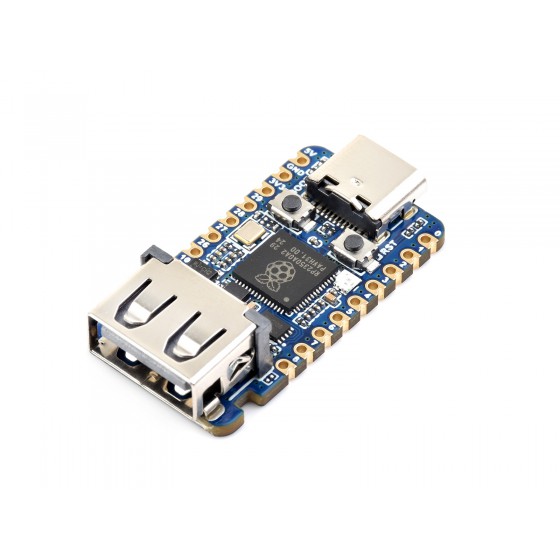
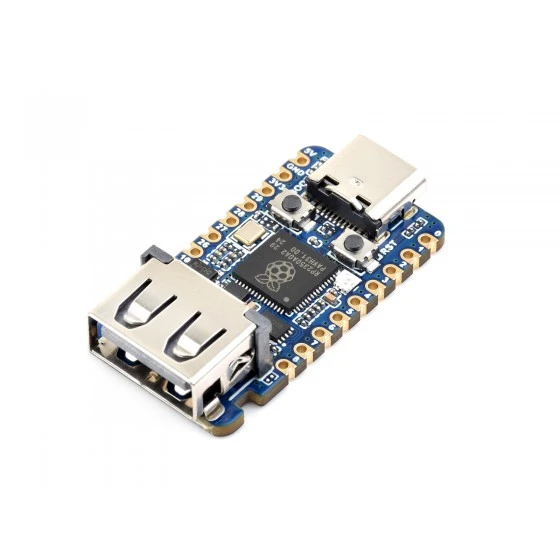
  • Waveshare RP2350 USB-A module
  • USB Type-C to USB Type-C data cable
  • USB Type-A to Lightning cable
  • Latest version of the iRemove Passcode Bypass Tool
  • Stable internet connection
Connect the locked iPhone or iPad to iRemove Software

The Process Has Two Parts

During Part 2, you must repeat Steps 1–3 and Steps 10–16 before completing Step 17. You do not need to flash the RP2350 module again.

Part 1: Prepare the RP2350 Module and Run the First Process

  • 1

    Connect the Locked Device

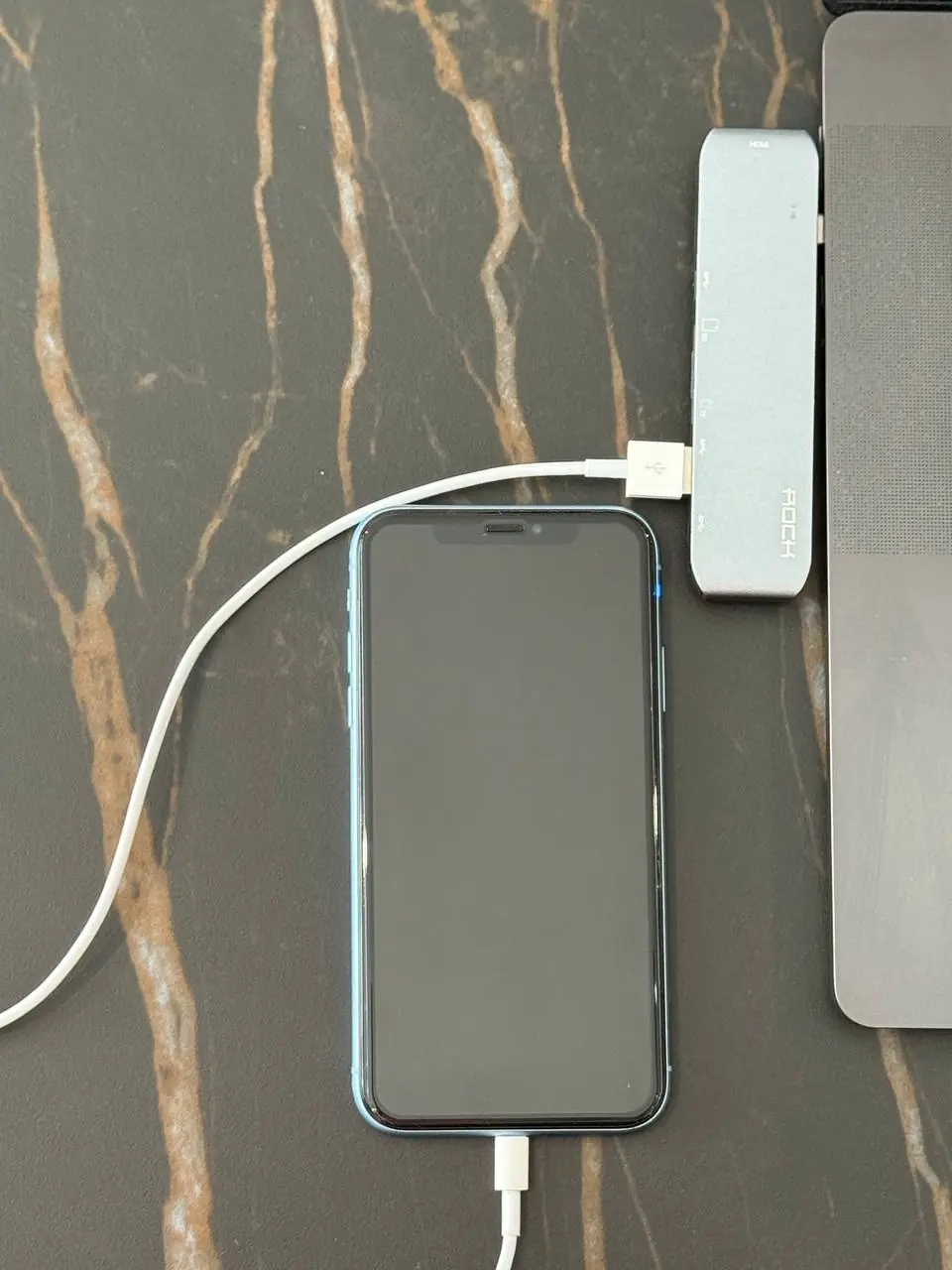
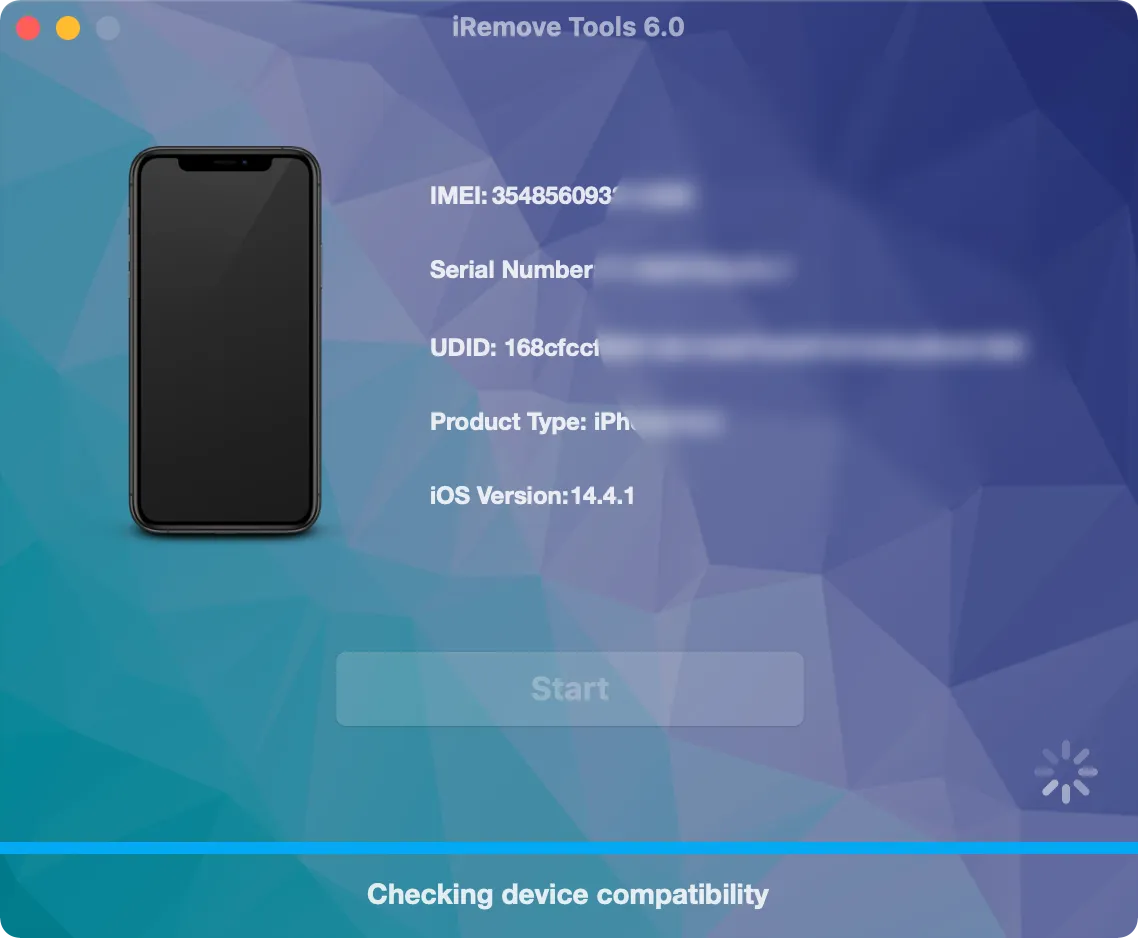
    Connect the locked iPhone or iPad to your Mac or Windows PC and launch the iRemove Software.

    Connect the locked iPhone or iPad to iRemove Software
  • 2

    Enter DFU Mode

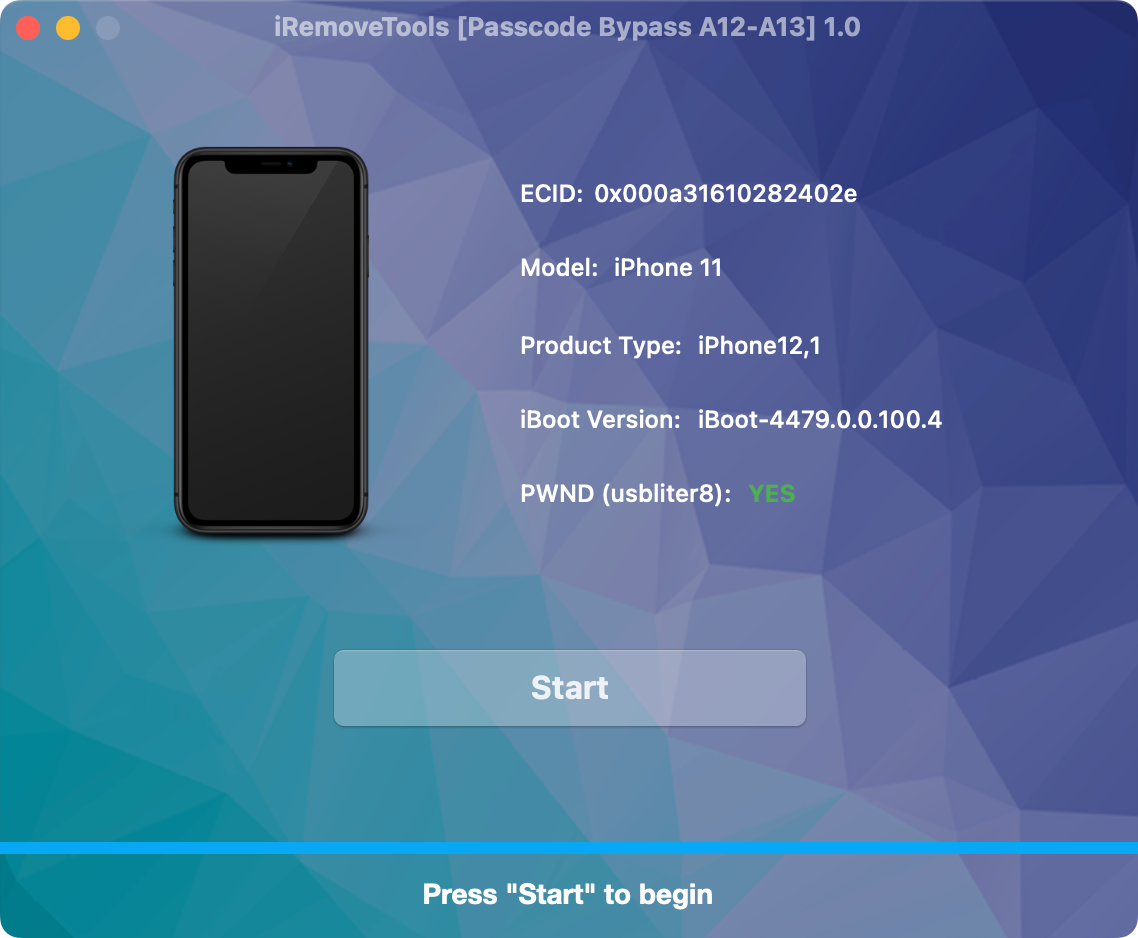
    The software will recognize the device and prompt you to put it into DFU Mode. Carefully follow the on-screen instructions.

    Put the iPhone or iPad into DFU Mode
  • 3

    Disconnect the Device

    Once the device has successfully entered DFU Mode, disconnect it from your computer.

    Disconnect the device after entering DFU Mode
  • 4

    Connect the RP2350 Module

    Connect the Raspberry Pi Pico RP2350 module to your computer using a USB Type-C data cable.

    Connect the RP2350 module using a USB Type-C cable
  • 5

    Open the RP2350 Flashing Section

    Follow the instructions displayed in the software to open the RP2350 flashing section.

    Open the RP2350 flashing section in iRemove Software
  • 6

    Select Your RP2350 Model

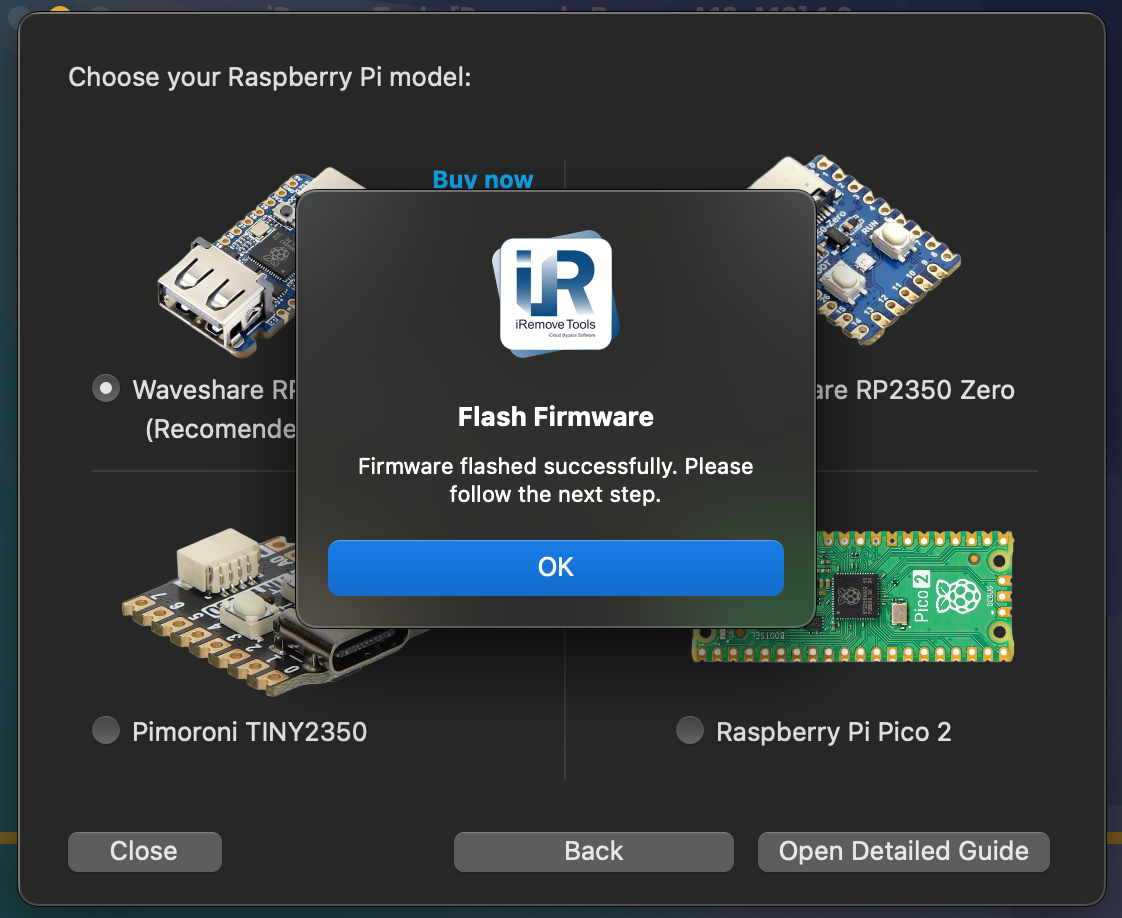
    Select the correct Raspberry Pi Pico or RP2350 module model from the list.

    Select the correct RP2350 module model
Waveshare RP2350 USB-A module

Recommended RP2350 Module

We recommend using the Waveshare RP2350 USB-A model. It has a built-in USB-A port, allowing you to connect the locked device directly without soldering a cable to the board.

If you use a standard Raspberry Pi Pico board, you may need to prepare and solder a compatible USB cable to it.

  • 7

    Check the Module Type

    Confirm that the module selected in the software matches the RP2350 model connected to your computer.

  • 8

    Flash the RP2350 Module

    Make sure the RP2350 module is connected via USB Type-C and that the correct model is selected. Click the Flash button.

    Flash the RP2350 module using iRemove Software
  • 9

    Wait for Flashing to Finish

    Wait until the flashing process is complete. Your RP2350 module is now flashed and ready to use.

    RP2350 module flashing completed
  • 10

    Disconnect the USB Type-C Cable

    Disconnect the USB Type-C cable from both the computer and the RP2350 module.

  • 11

    Connect the Device to the RP2350 Module

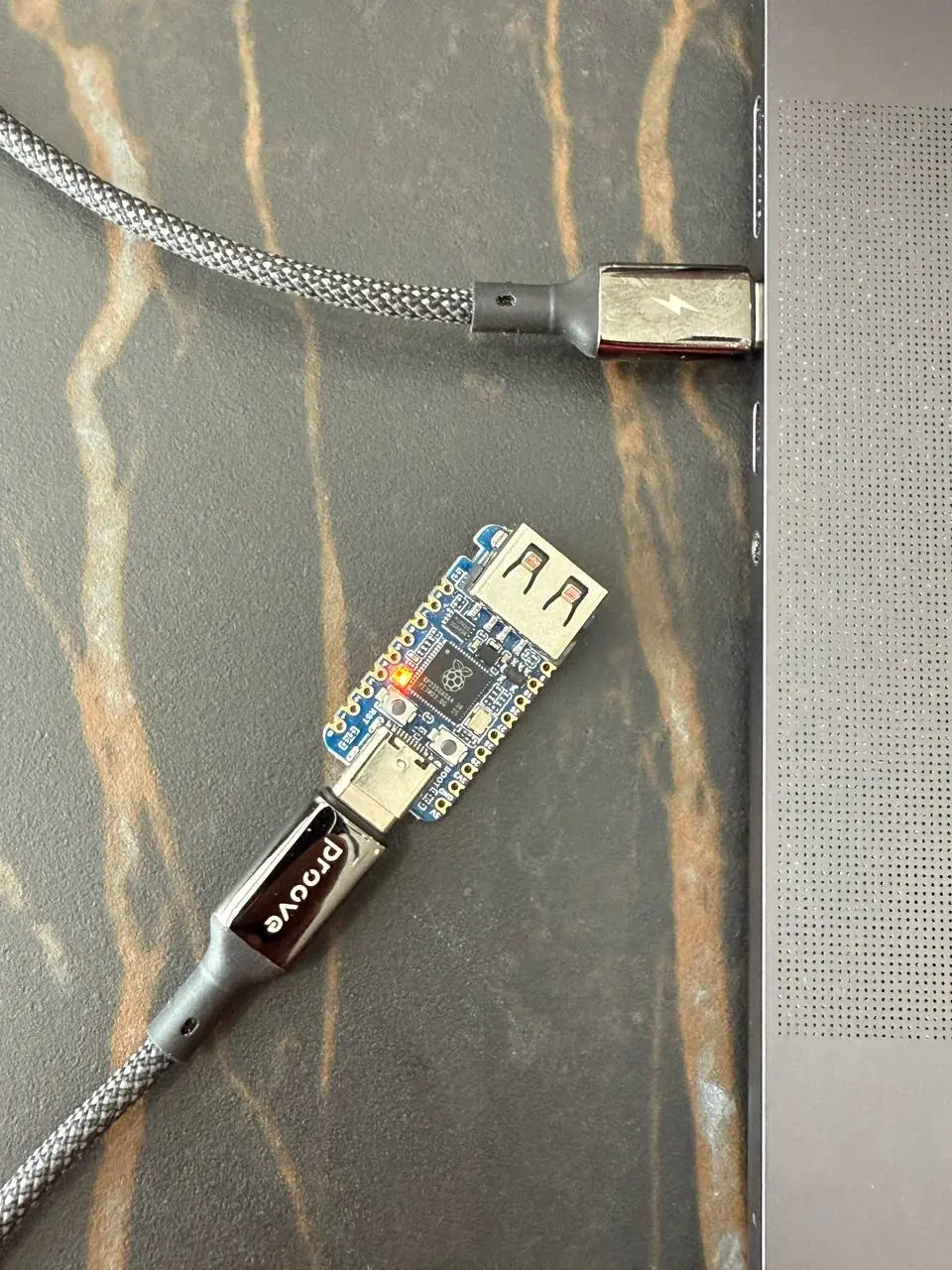
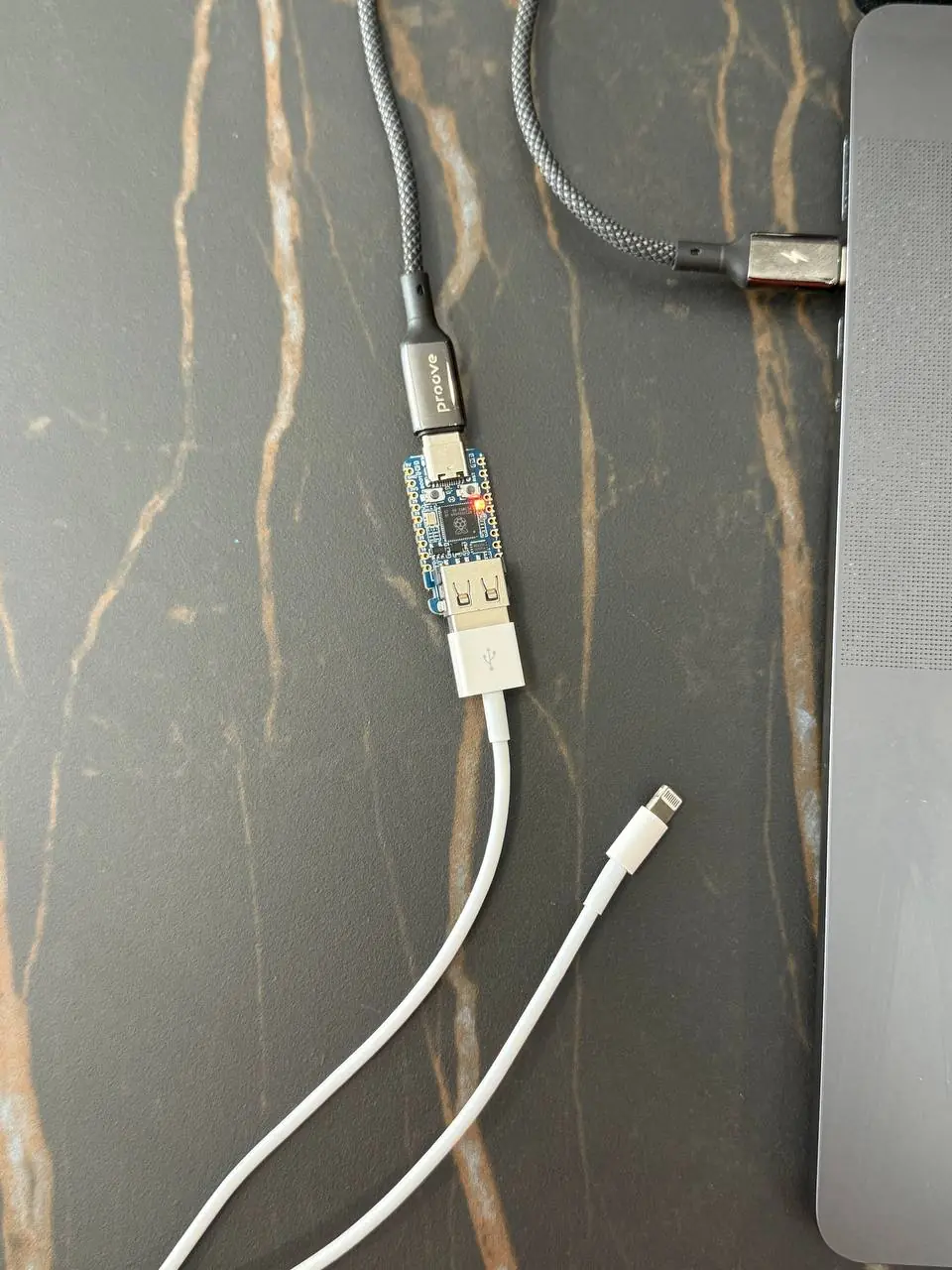
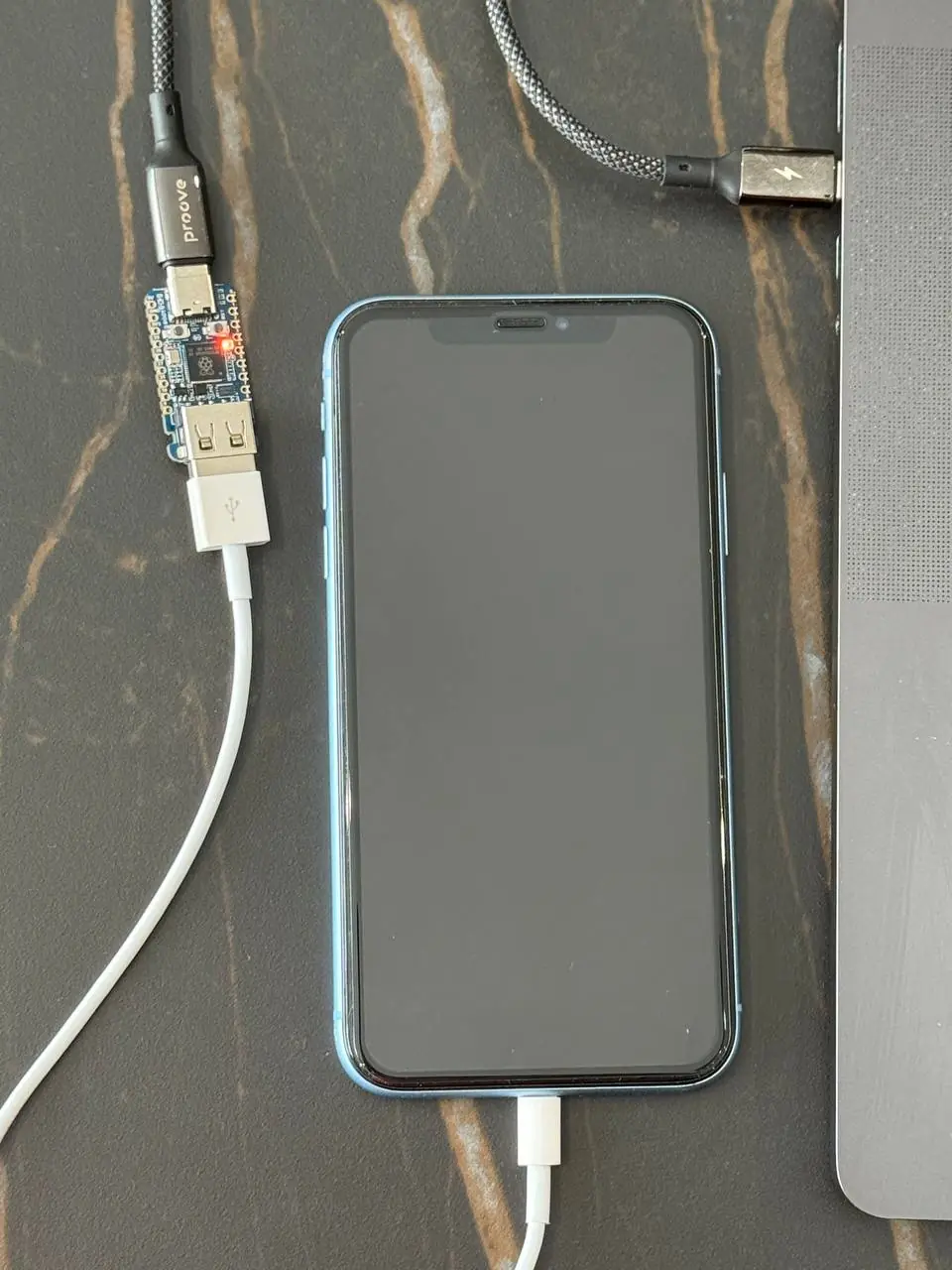
    Connect the locked device cable to the USB Type-A port on the RP2350 module.

    Connect the locked device to the RP2350 USB-A port

Attention: Check DFU Mode

Make sure the locked device is still in DFU Mode before connecting it to the RP2350 module.

If you are unsure, reconnect the device directly to your computer and check it using the software. If the software recognizes the device and displays its information, it is in the correct mode.

  • 12

    Start the RP2350 Process

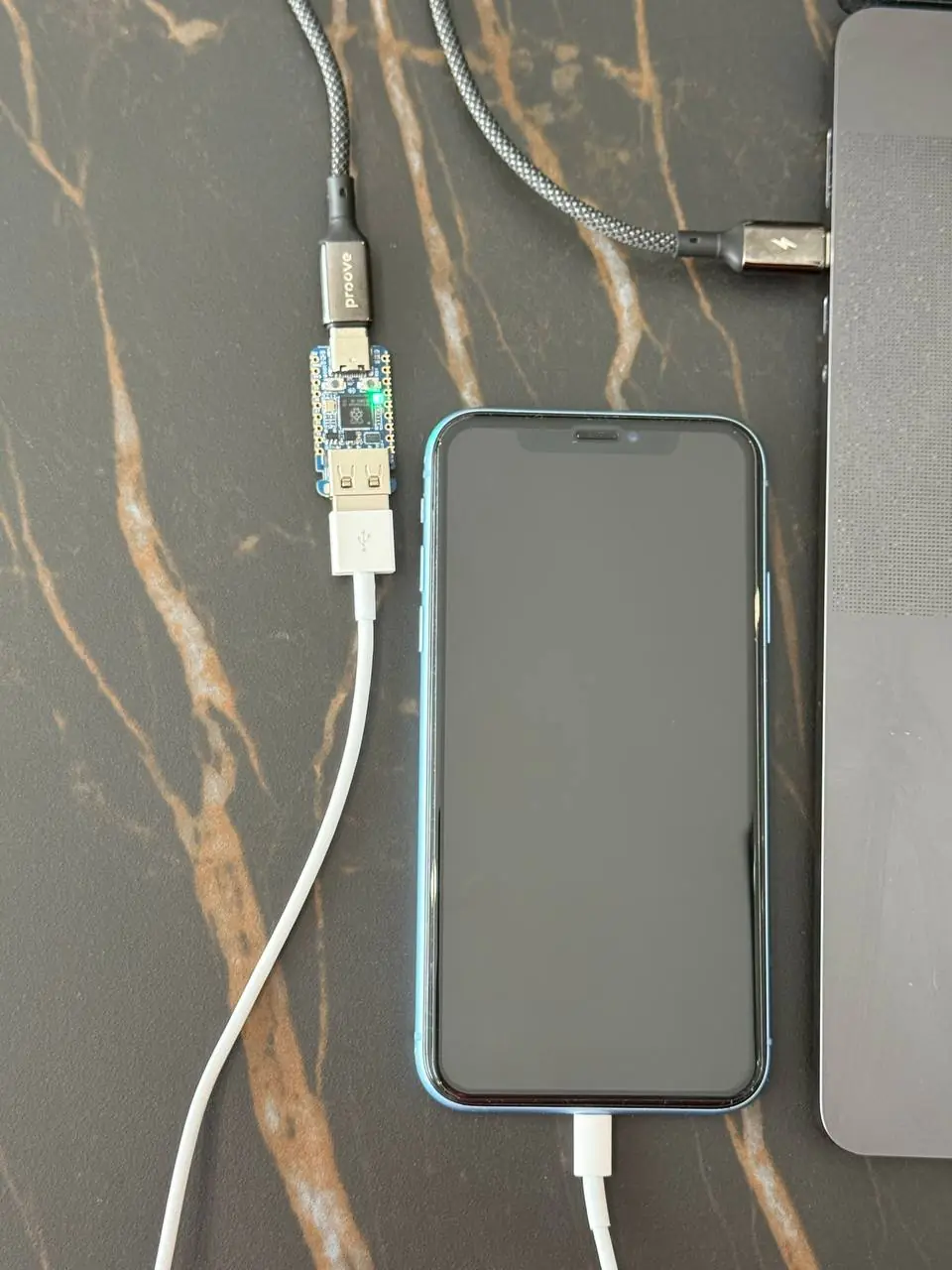
    Connect the locked device to the RP2350 module using the appropriate USB cable. The process should start automatically.

    Start the RP2350 process on the locked device
  • 13

    Check the RP2350 Status Light

    The status light on the RP2350 module indicates the current stage of the process:

    • Orange: Ready to start
    • Blue: Process in progress
    • Green: Process completed successfully
    • Red: Process failed
    RP2350 module status light colors

If the Process Fails

Disconnect the RP2350 module from both the computer and the locked device. Connect the RP2350 module to the computer first, and then reconnect the locked device to the module. The process should restart automatically.

  • 14

    Reconnect the Device to the Computer

    Once the process has completed successfully, disconnect the locked device from the RP2350 module and reconnect it directly to your computer.

    Reconnect the device directly to the computer
  • 15

    Continue in iRemove Software

    The software will recognize the device and prompt you to start the passcode bypass process or order the required service.

    Start the passcode bypass service in iRemove Software
  • 16

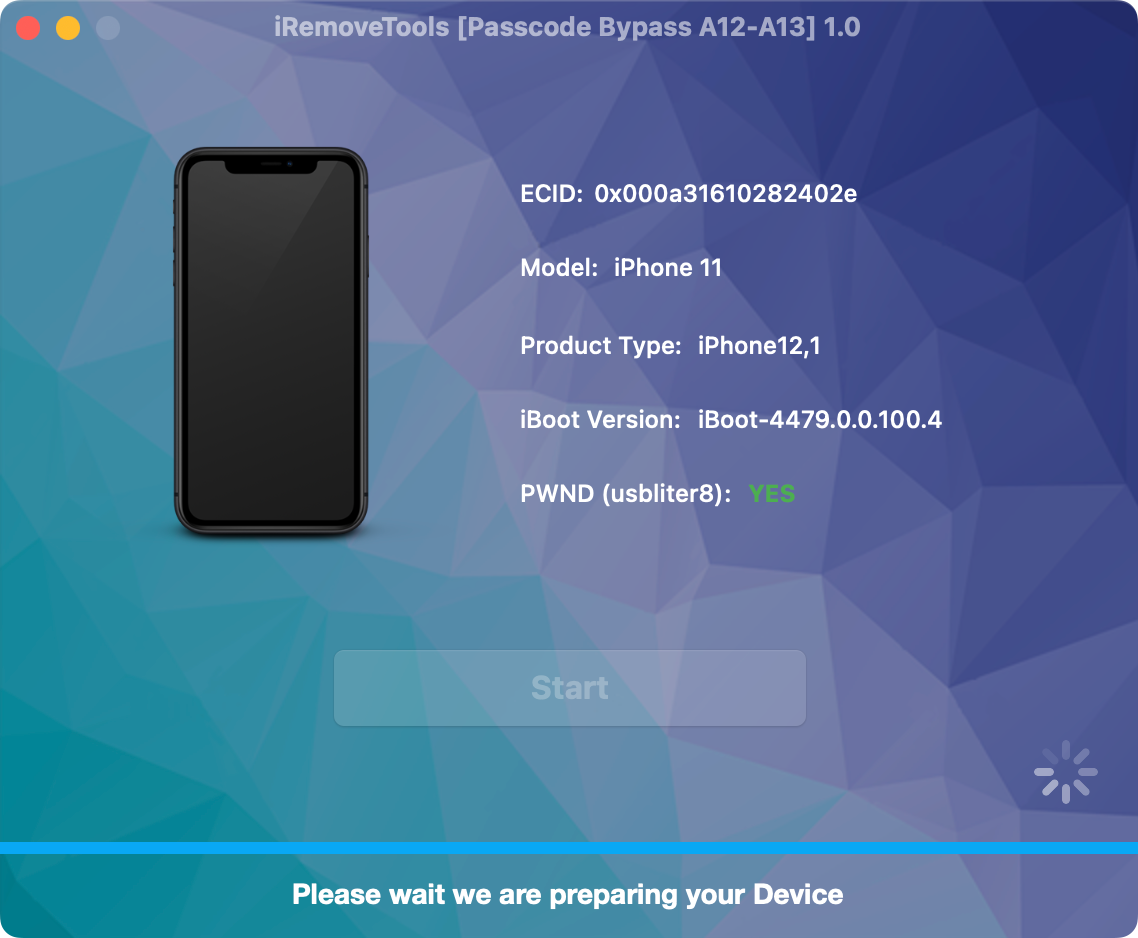
    Start the Software Process

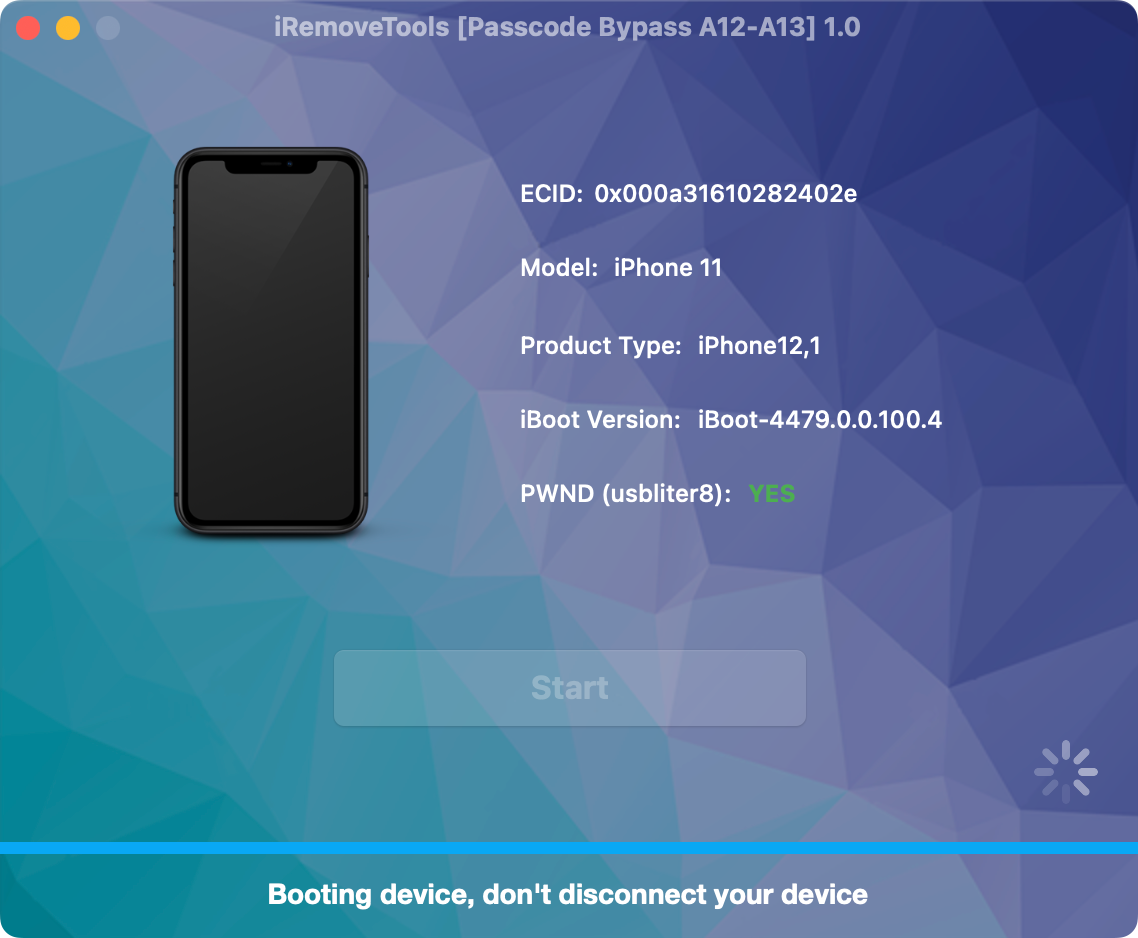
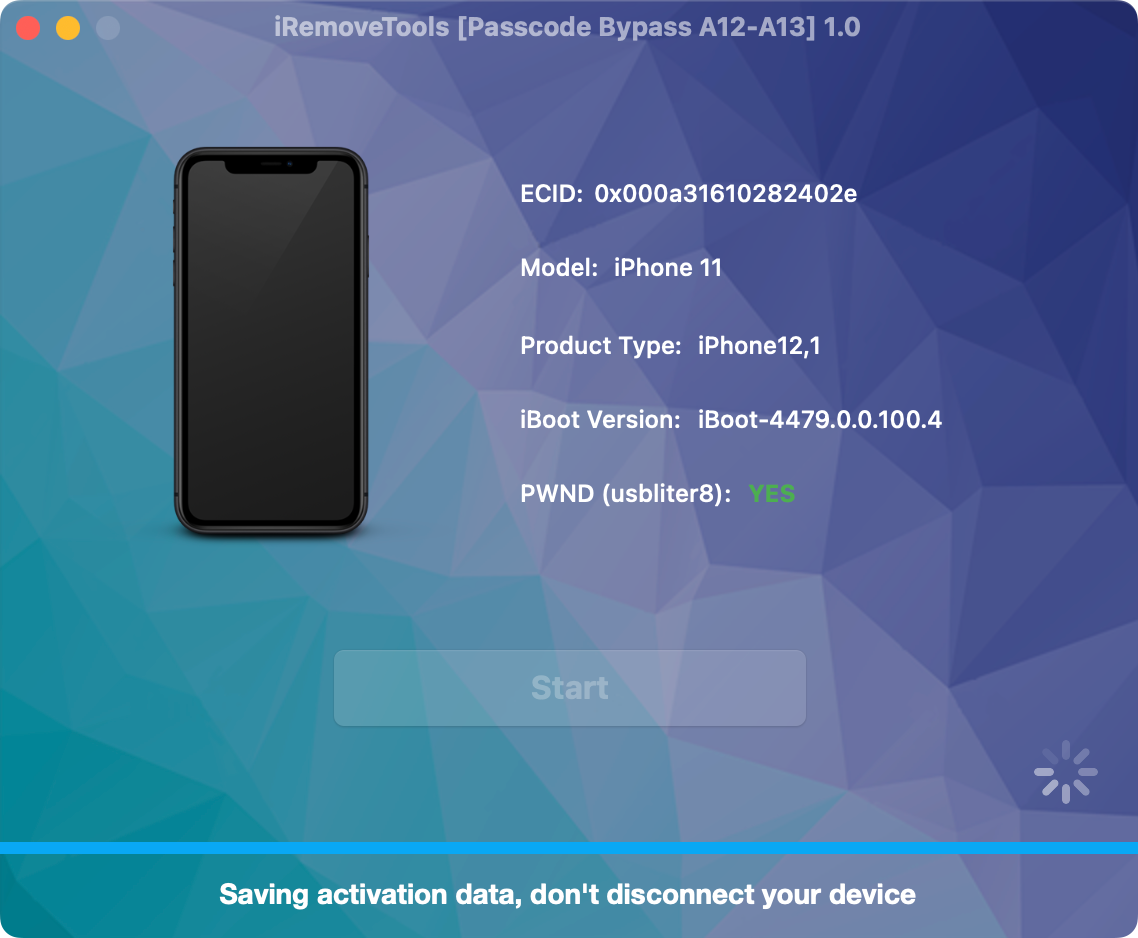
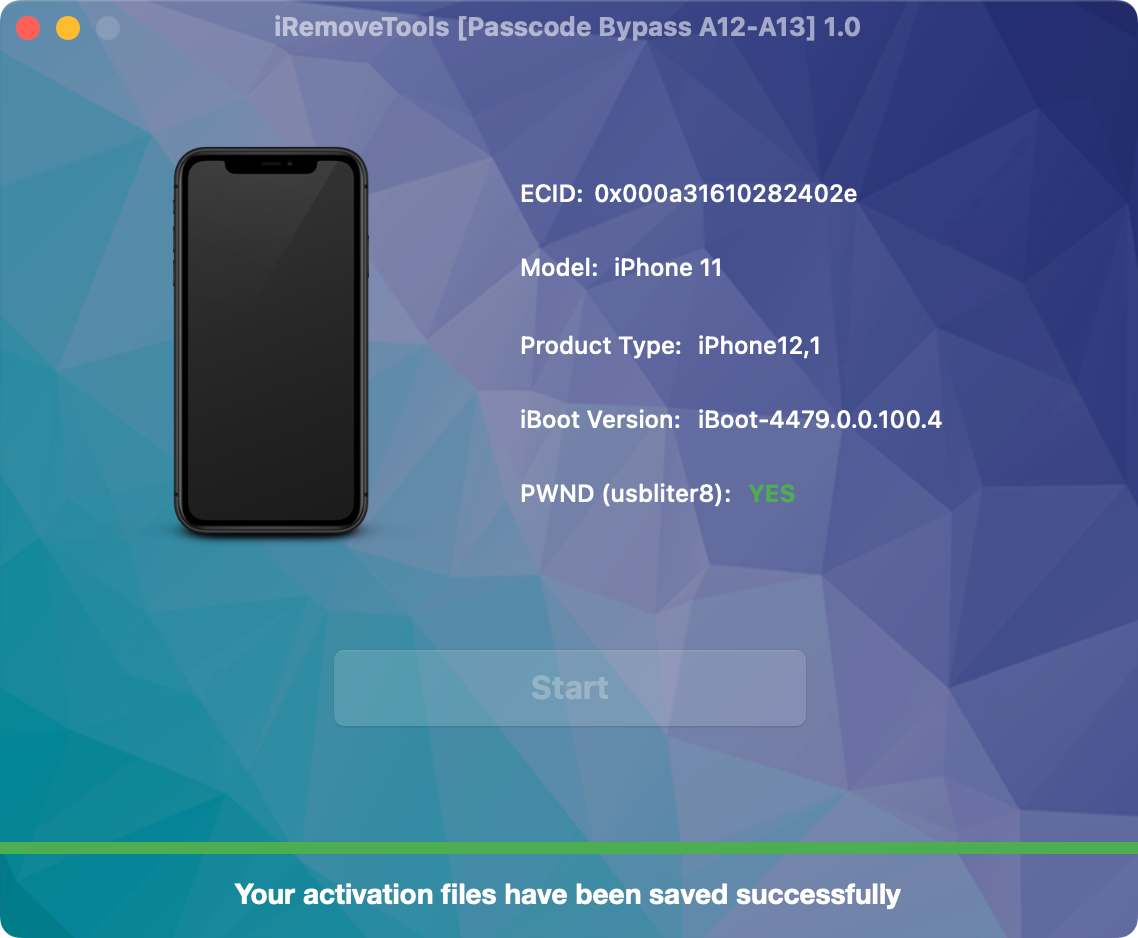
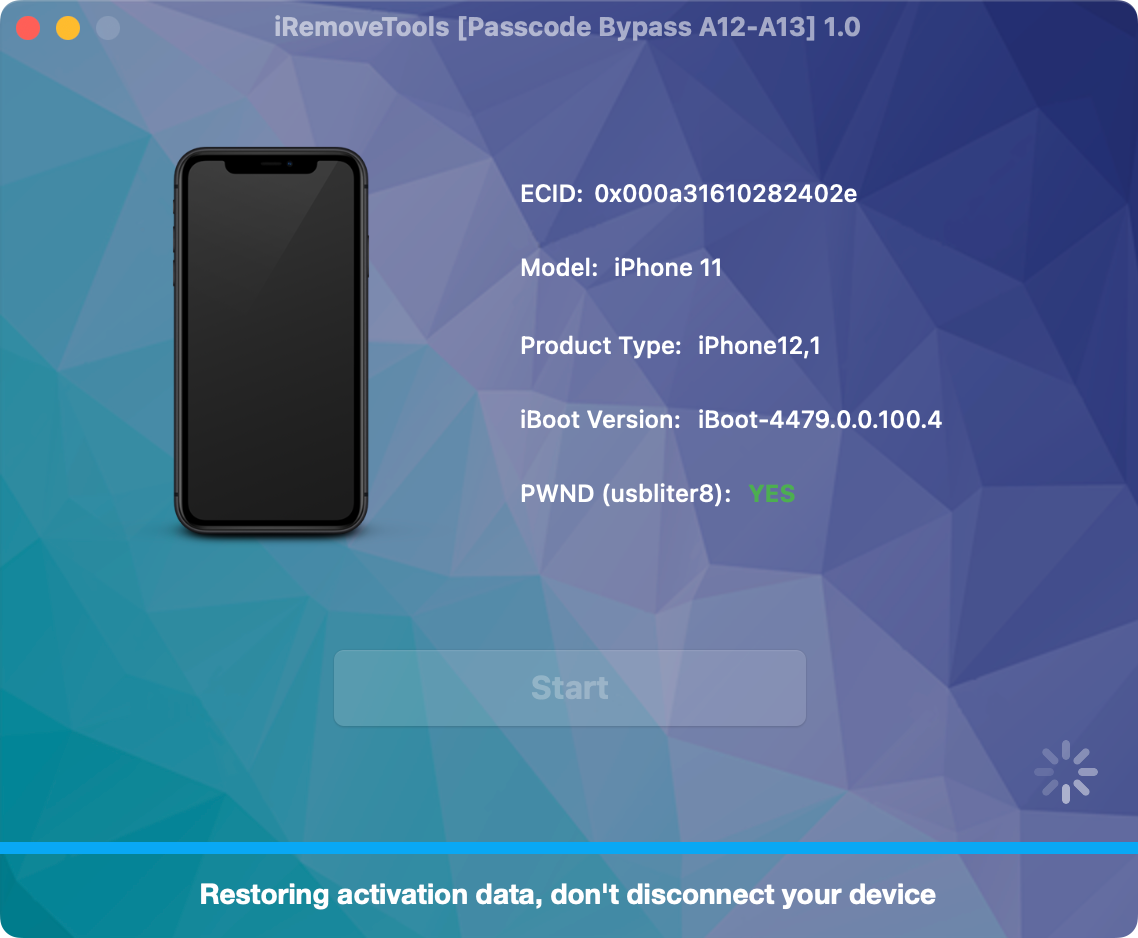
    Click Start. Do not disconnect the locked device until the software confirms that this part of the process has been completed.

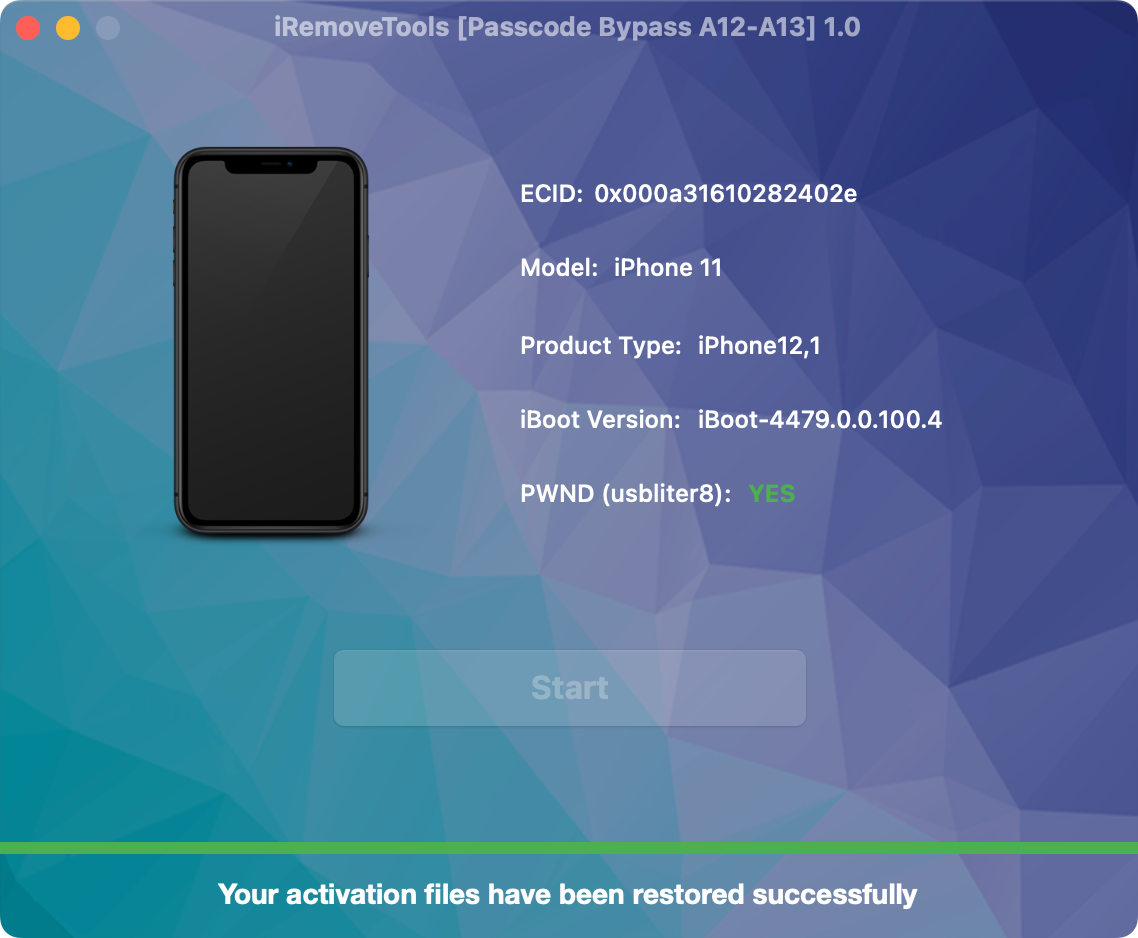
    Complete the first passcode bypass software process

Part 2: Repeat the Required Steps

The procedure must now be completed a second time. Repeat the following steps in the same order:

  1. Repeat Step 1: Connect the locked device to your computer and launch the software.
  2. Repeat Step 2: Follow the on-screen instructions to put the device into DFU Mode.
  3. Repeat Step 3: Disconnect the device after DFU Mode has been confirmed.
  4. Repeat Steps 10–16: Reconnect the RP2350 module and device, wait for a successful result, reconnect the device to your computer, and complete the second software process.

Do Not Flash the Module Again

Do not repeat Steps 4–9. The RP2350 module has already been flashed and is ready for the second process.

  • 17

    Complete the Procedure

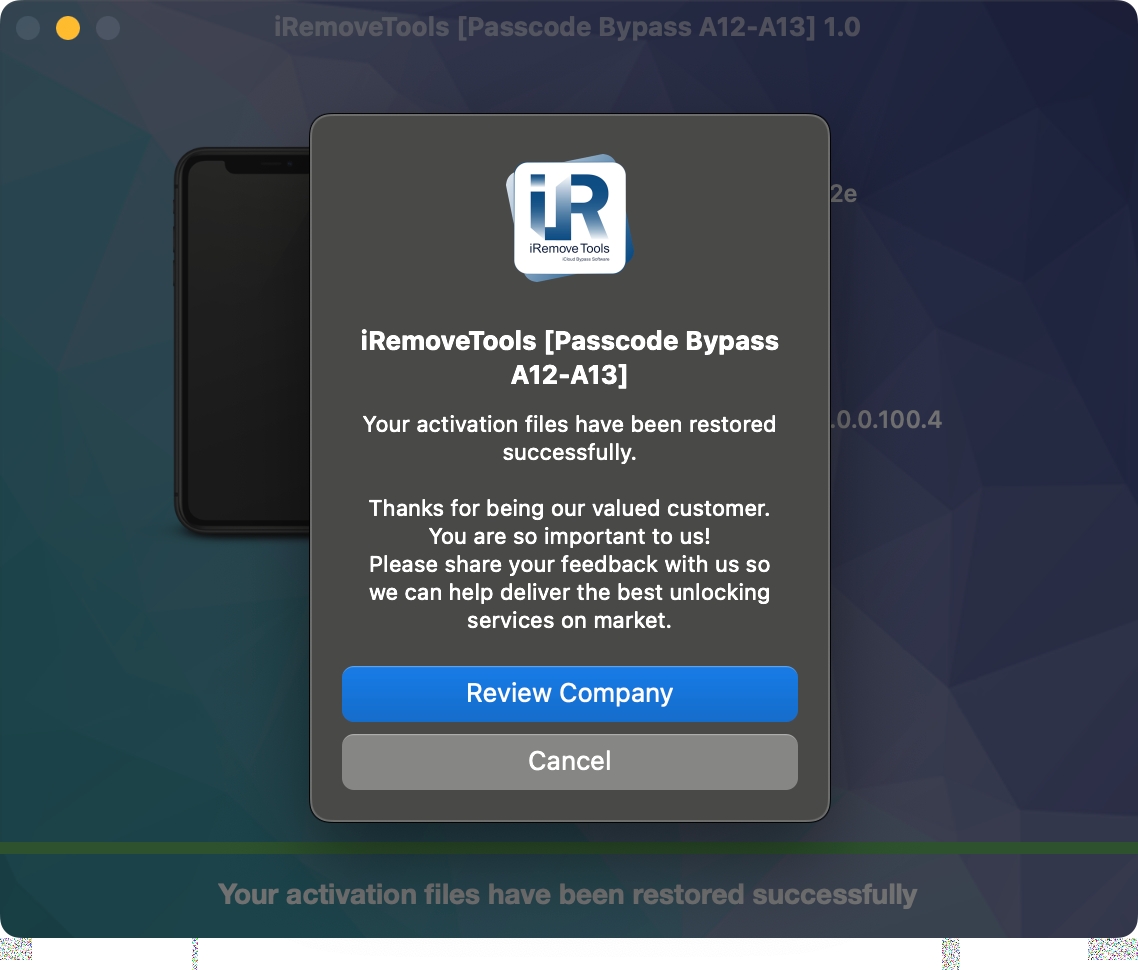
    After the second process has finished, wait for the software to display the completion message before disconnecting the device.

    iOS passcode bypass process completed successfully

Process Completed Successfully

Congratulations! The procedure has been completed successfully. You can now sign in with your own Apple ID and test all available device functions.

FAQ

Frequently Asked Questions About A12–A13 Passcode Bypass

Find answers about supported iPhone and iPad models, iOS compatibility, required RP2350 equipment, pricing and the iRemove passcode bypass process.

What is the iRemove A12–A13 passcode bypass service?

The iRemove A12–A13 Passcode Bypass Service is designed to remove the passcode or PIN lock screen from supported iPhone and iPad models powered by Apple A12 and A13 processors. The process uses iRemove Software, a compatible RP2350 module and the USBLiter8 exploit.

Which iPhone models are supported?

The service currently supports the following iPhone models:

  • iPhone XR
  • iPhone XS
  • iPhone XS Max
  • iPhone 11
  • iPhone 11 Pro
  • iPhone 11 Pro Max
  • iPhone SE (2nd generation)
Which iPad models are supported?

The service currently supports selected A12-based iPad models:

  • iPad mini (5th generation)
  • iPad Air (3rd generation)
  • iPad (8th generation)
  • iPad (9th generation)

Connect your device to iRemove Software to confirm its exact model and service eligibility before placing an order.

Which iOS and iPadOS versions are supported?

The service supports compatible iPhone and iPad devices running iOS or iPadOS 18.x through 26.x. Compatibility may depend on the exact device model, processor and installed firmware version.

Does the passcode bypass retain cellular signal support?

Yes. On supported iPhone and cellular-capable iPad models, the iRemove A12–A13 passcode bypass is designed to retain cellular signal functionality after the procedure is completed successfully.

Do I need a Raspberry Pi Pico or RP2350 module?

Yes. This procedure cannot be completed using iRemove Software alone. You need a compatible Raspberry Pi Pico RP2350 module, USB data cables and physical access to the locked device.

We recommend the Waveshare RP2350 USB-A module because it includes a built-in USB-A port and does not require a USB cable to be soldered directly to the board.

Does the service work on Windows and macOS?

Yes. The latest version of iRemove Passcode Bypass Software is available for supported Windows PCs and Mac computers. Use a reliable data-capable USB cable and follow the instructions displayed by the software.

Do I need to flash the RP2350 module twice?

No. The RP2350 module only needs to be flashed during the first part of the procedure. When repeating the required steps during Part 2, do not flash the module again. The prepared module is already ready for the second process.

What do the RP2350 status light colors mean?
  • Orange: The module is ready to start.
  • Blue: The process is in progress.
  • Green: The process was completed successfully.
  • Red: The process failed and must be restarted.
How much does the A12–A13 passcode bypass service cost?

The current service price is $29.99 per supported device. Connect your iPhone or iPad to iRemove Software before ordering to confirm its model, firmware version and service eligibility.

Can I use this service on any locked iPhone or iPad?

No. The device must be supported and remain on the passcode-locked screen. This procedure must only be used with an iPhone or iPad that you own or are legally authorized to service.

iRemove软件合作伙伴

批发商及小企业主会喜欢我们的合作伙伴关系提供的好处。如果你有一个GSM商店、车间或其他业务,你可以成为我们的合作伙伴。iRemove合作伙伴计划支持GSM融合、DHRU及其他流行的GSM服务。我们使用API连接,将经销商网站连接到我们提供的服务。我们还开发了一个客户端系统,用于快速访问所有服务。

成为iRemove联盟的一员

你有一个科技博客吗?你在经营一个YouTube频道或Instagram账户吗?加入iRemove联盟计划,赚取额外的钱,享受被动收入。你可以为Mac用户提供iRemove解锁及绕过服务,并从成为我们的联盟中受益。如果你希望今天开始赚取额外的钱,请向我们发送你的加盟请求。

加入加盟计划
成为iRemove联盟的一员

保持了解

从iRemove团队获得最新发展的特别优惠。

还在寻找帮助吗?

请不要担心。请联系我们的支持团队。我们总是很乐意帮助你。

联系我们友好的支持团队