Hard Reboot Mac Device
Tethered Bypass: Not Compatible with Hard Reboot
Tethered bypass means when the device performs Hard Reboot, you have to re-bypass using iRemove T2 Bypass tool, otherwise you won’t be able to use the device and it will be stuck on Activation Window. Any re-bypass is free of charge. All data on device and MacOS settings will be saved. Also in some cases Mac Battery might be draining quickly that usual.
To prevent potential errors during the Mac activation lock bypass process, it is advisable to restore your Mac using Apple Configurator. Follow these simple steps:
1. Enter the locked Mac into DFU mode and run the iRemove T2 Bypass Tool.
2. Once the bypass is completed, press the Power button once.
3. Immediately press Command + R to boot the Mac into Recovery mode.
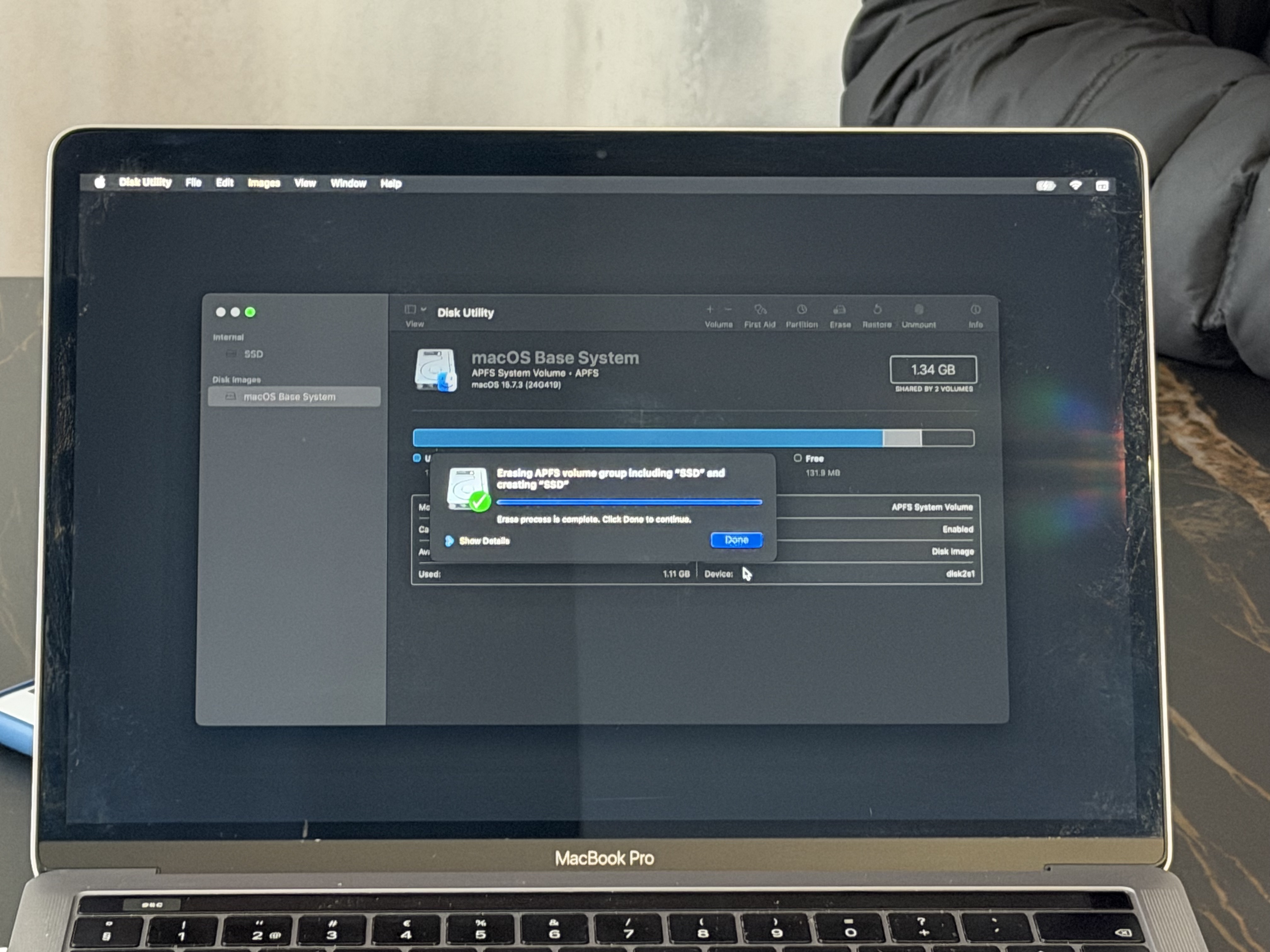
4. Click Disk Utility.
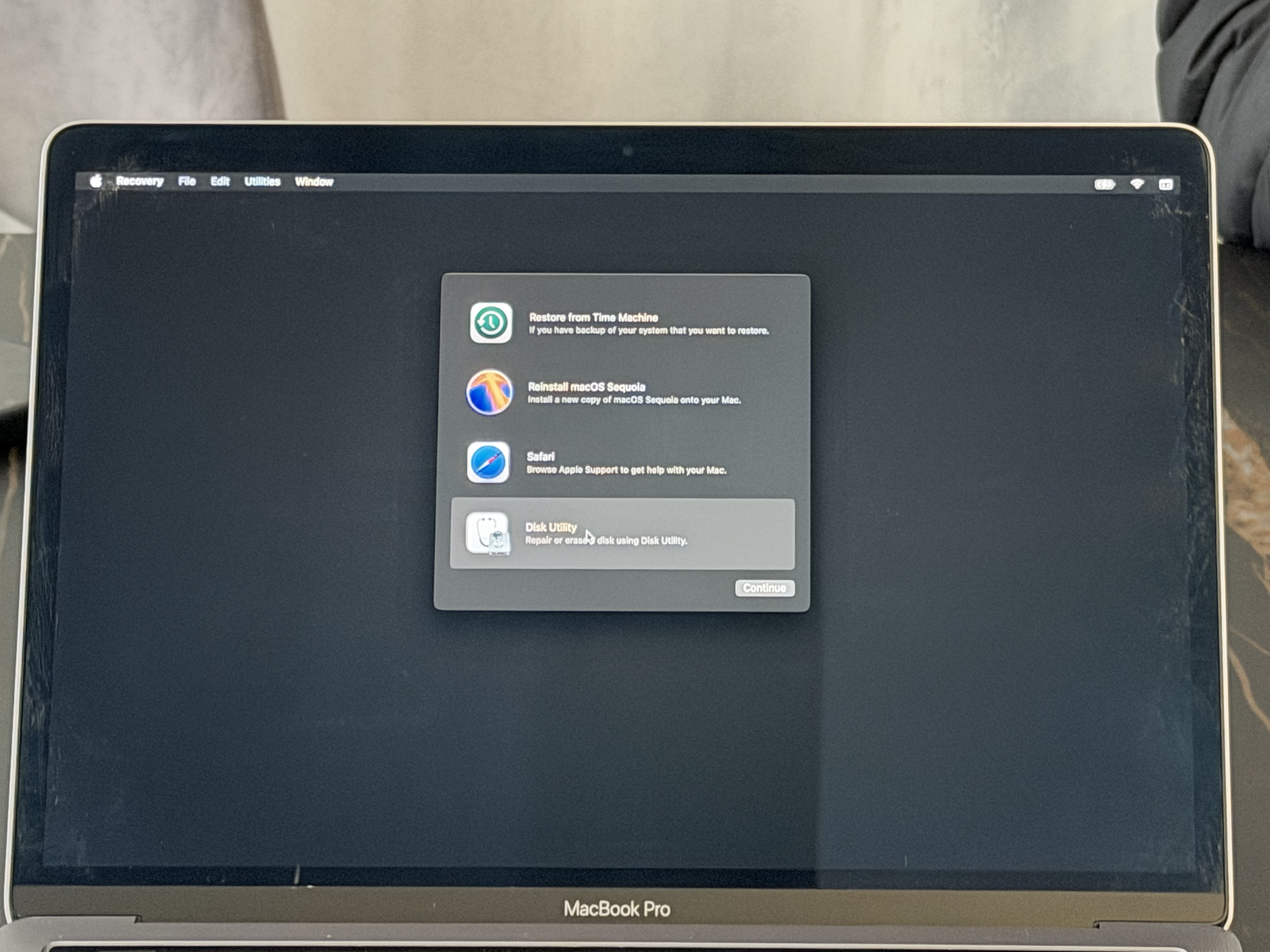
5. Select the Mac Internal SSD drive.
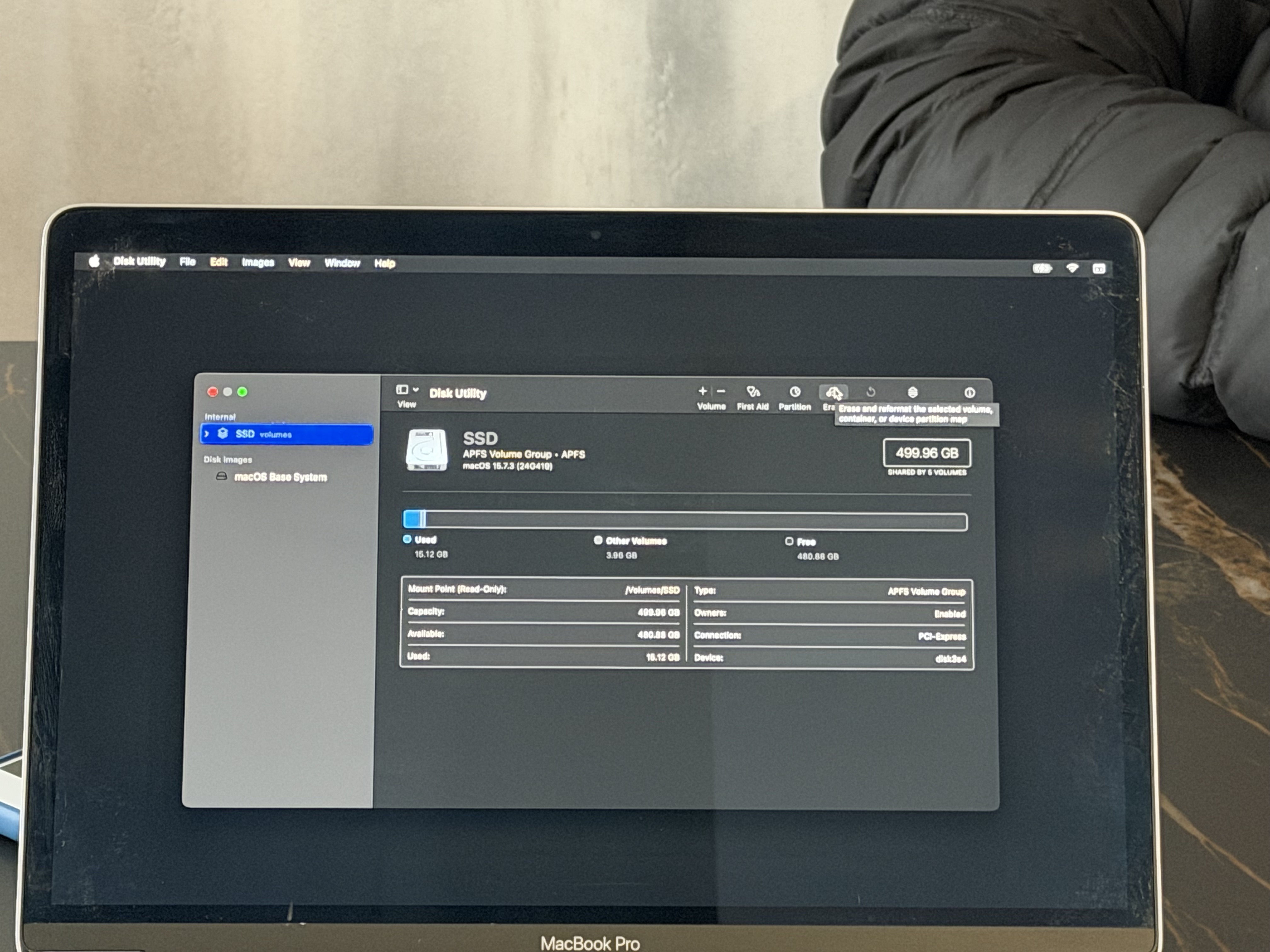
6. Click Erase and choose APFS as the file system.
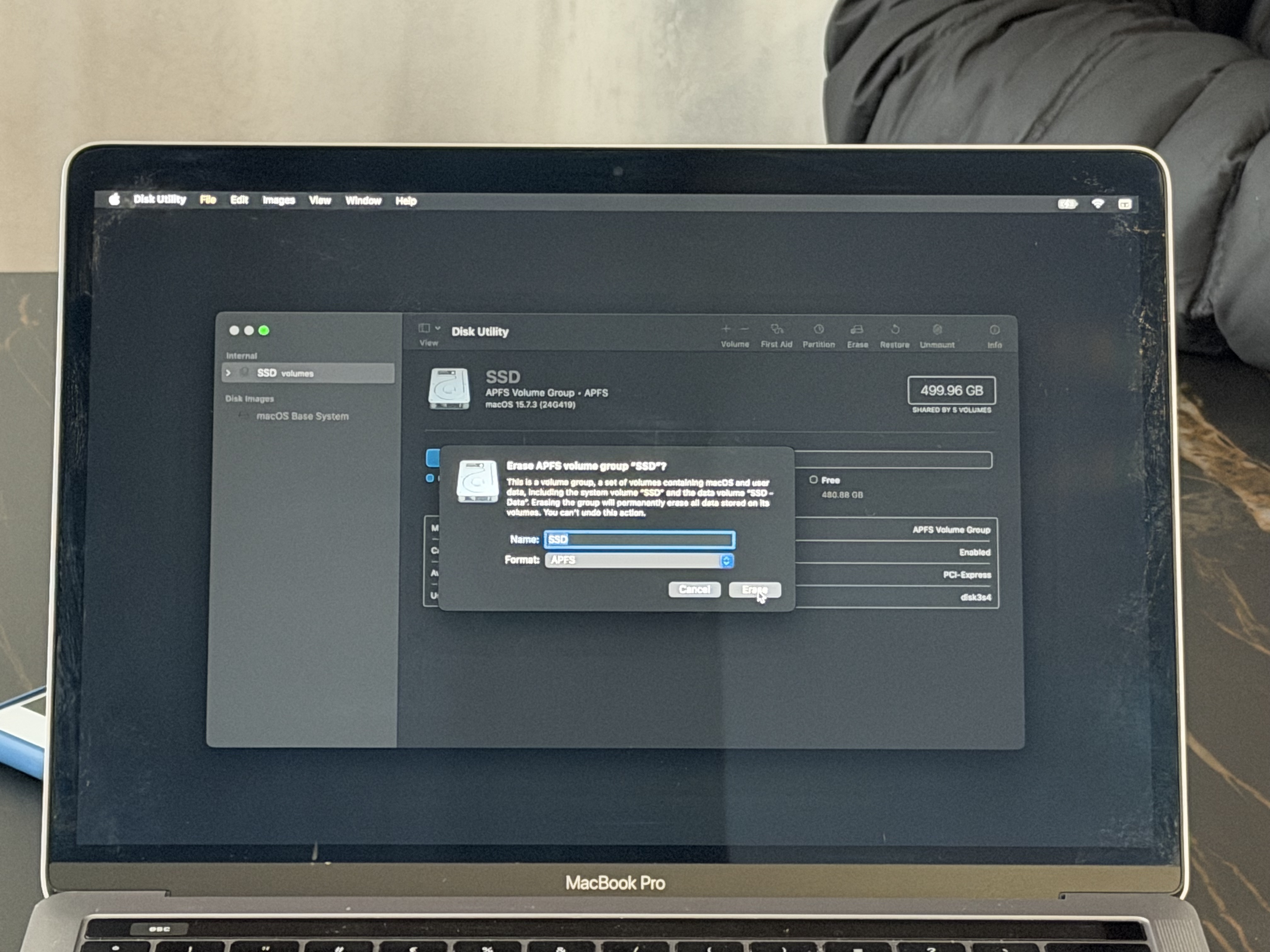
7. Wait until Disk Utility finishes erasing the SSD.
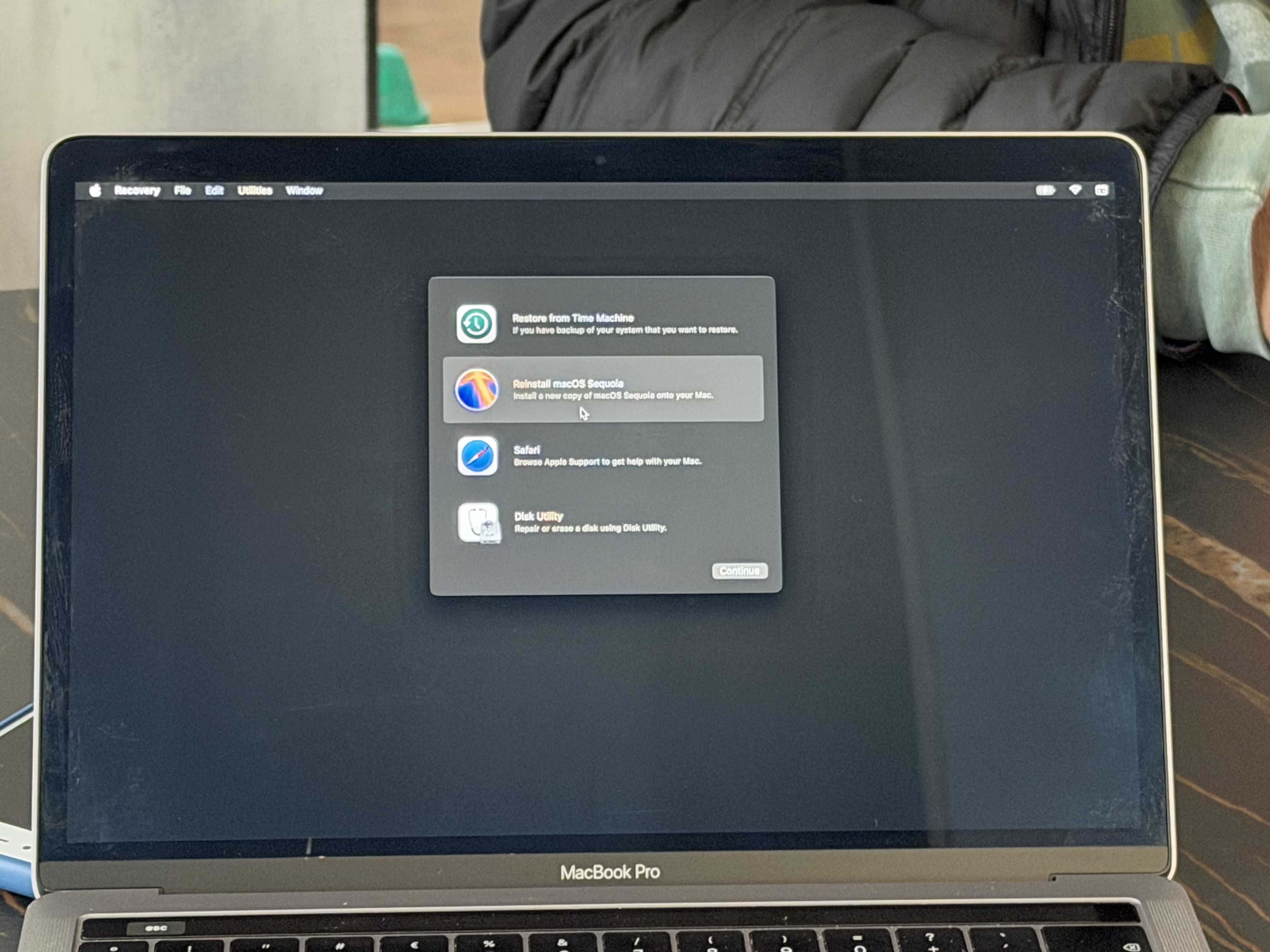
8. Select Install macOS. Follow the macOS installation steps.
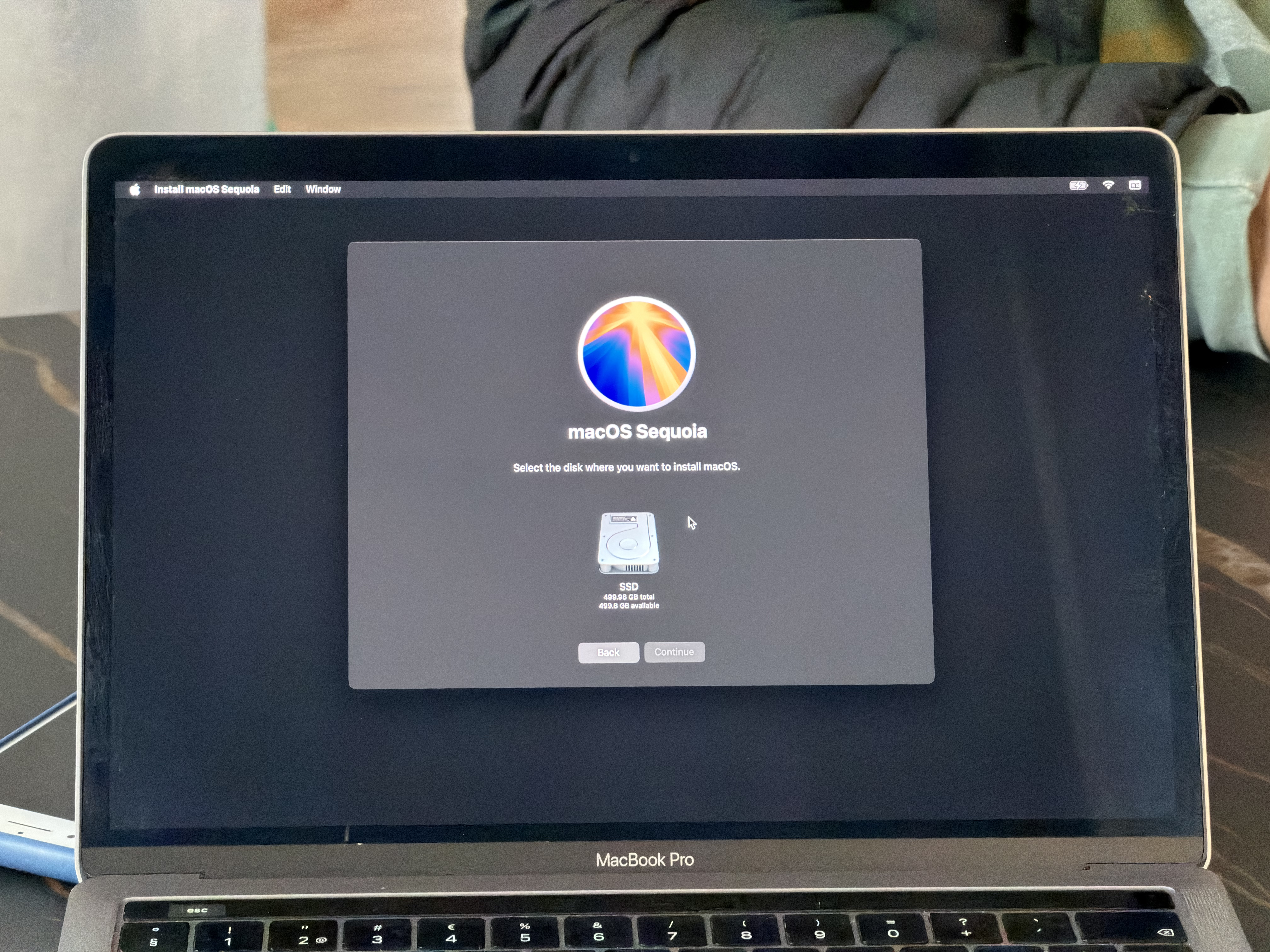
9. When prompted, choose the erased SSD as the installation destination.
10. The macOS installation process will begin.

11. The Mac will reboot to a black screen to continue the installation.
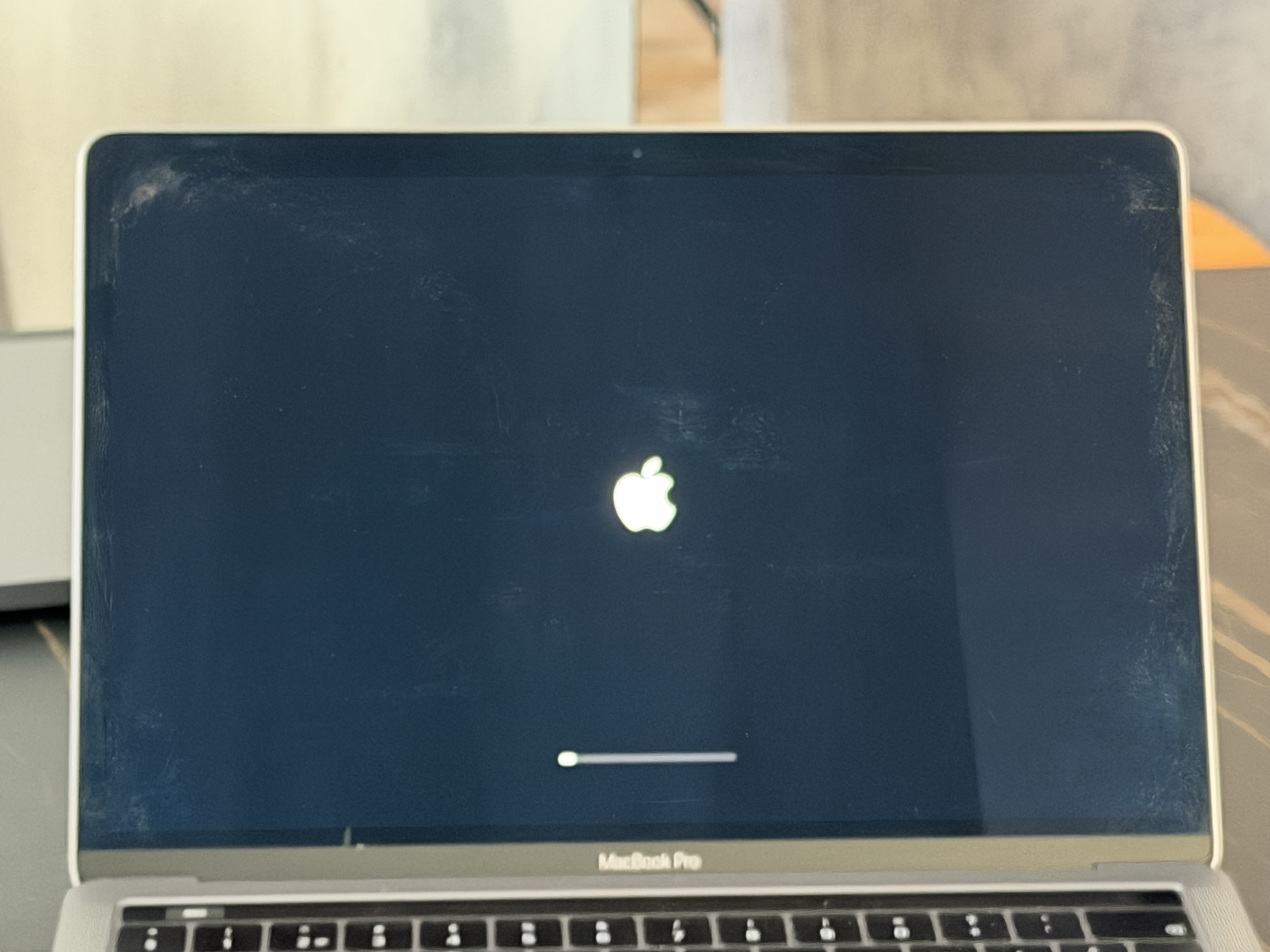
12. Once the installation is completed, the Mac will reboot and request Activation again.
13. Enter the Mac into DFU mode and run the iRemove T2 Bypass Tool again.
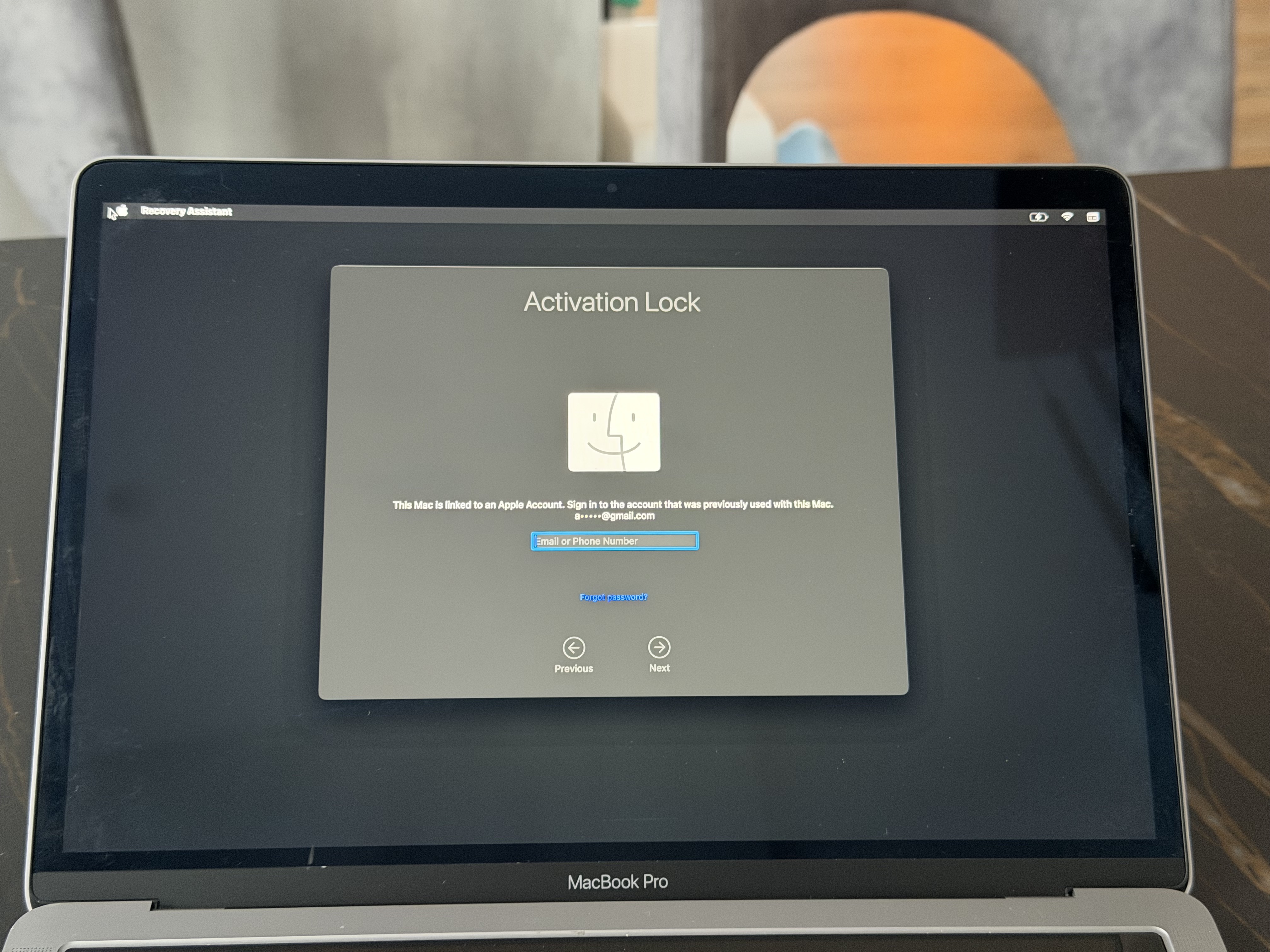
14. After the bypass is completed, press the Power button once, and the Mac will reboot.
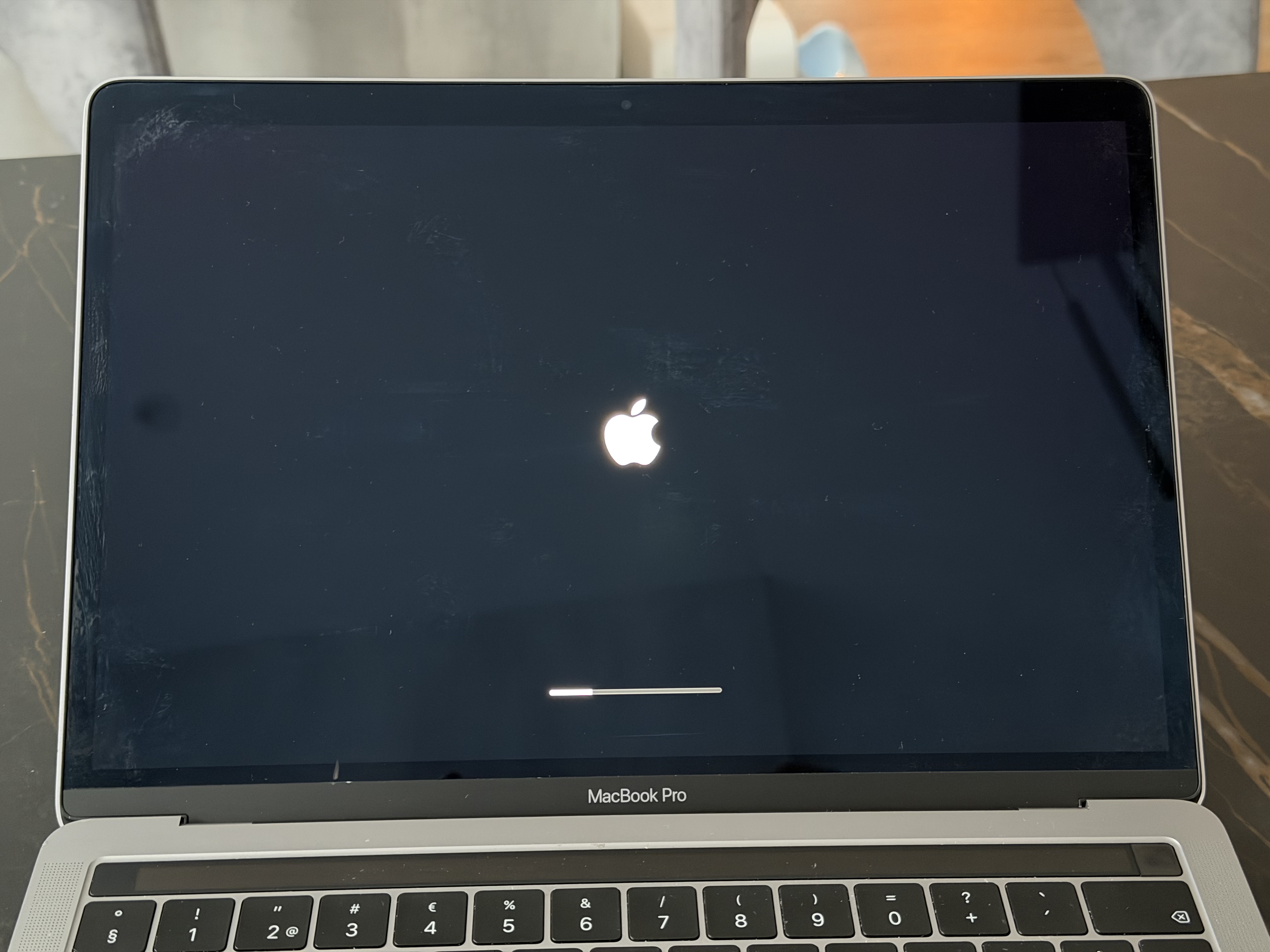
15. After the bypass and reboot, the Mac will finish the macOS installation.
Complete the macOS setup: create a user, customize settings, etc.
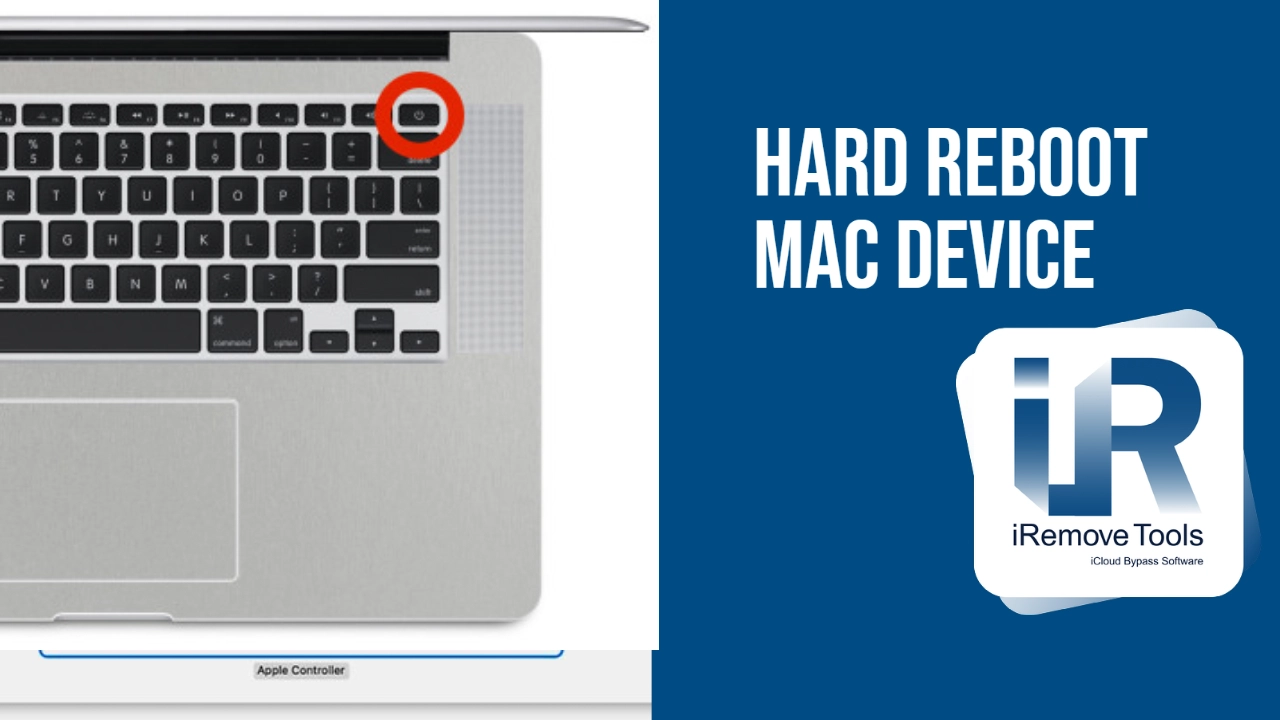
❌DO NOT USE HARD REBOOT FEATURE, IT WILL FORCE ACTIVATION LOCK AND DEVICE NEED TO BE RE-BYPASSED AGAIN.❌
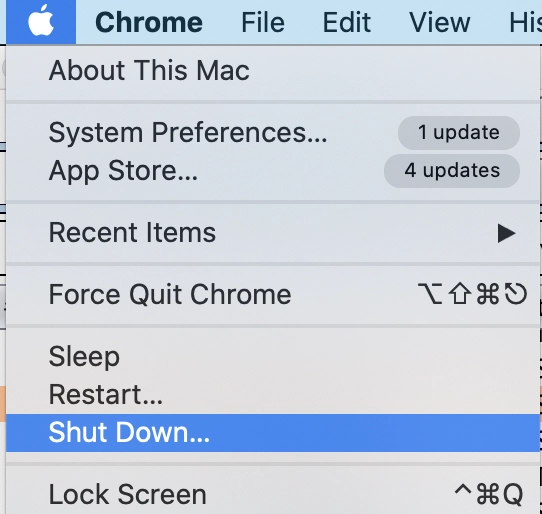
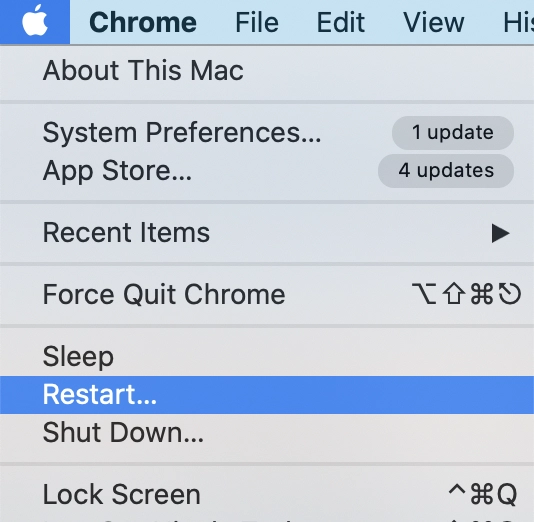
✅Also, you can use Apple menu > Shut Down:
✅If you need to reboot MacOS device use Apple menu > Restart.
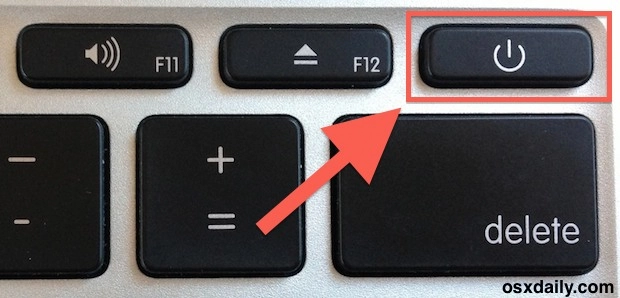
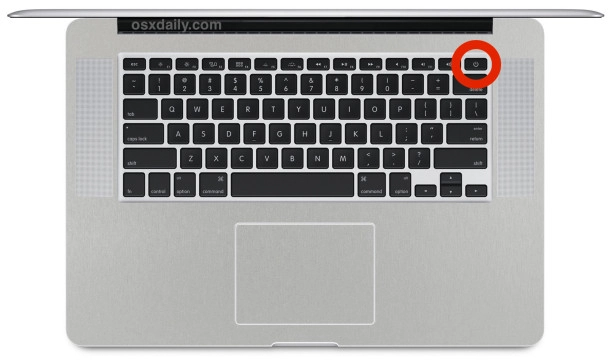
- Step 1. Hold down the Power button on the keyboard until the MacBook shuts down completely, this may take 5 seconds or so.
- Step 2. Wait a few seconds then hit the Power button again to boot the Mac
Hard Reboot MacOS
The process requires several steps:

Share:
iPhone & iPad Unlock Software
Mac Unlock Software

![MacOS Remote Management [MDM] Bypass Software](/assets/img/banners/find-my-mac-unlock-without-icloud-password.svg)
iRemove News

USBLiter8 BootROM Exploit Explained | A12 & A13 Apple Devices
Learn how the USBLiter8 BootROM exploit works on Apple A12 and A13 devices. Explore SecureROM exploitation, Pwned DFU mode, supported devices, security implications, and research applications.
iCloud Unlock for iPhone 15 Series with iRemove Software
Unlock iCloud on iPhone 15 Series effortlessly with iRemove Software. Learn how to bypass Activation Lock on iPhone 15, 15 Plus, 15 Pro, and 15 Pro Max.
Bypass iCloud and Unlock iPhone 14 with the iRemove Software
Bypass the Activation Lock on any iCloud-locked iPhone 14 series model, including the 14 Plus, 14 Pro, and 14 Pro Max, using iRemove Software!
Bypass iCloud Lock from iPhone XR, XS, and XS Max
Use iRemove Software to Bypass iCloud Activation Lock on any iPhone XR, XS, and XS Max models. The fast and effective iCloud Unlock hardware method.

Bypass iCloud on iPhone 11 Series: 11, 11 Pro and 11 Pro Max
Bypass the iCloud Activation Lock on any iPhone 11 series model, including 11 Pro and 11 Pro Max, using the iRemove Activation Lock Bypass Tool!
Remove - Bypass the Activation Lock on iPhone 12 Series
Unlock the Activation Lock on your iPhone 12, 12 Pro, 12 Pro Max, and 12 Mini quickly and easily with iRemove iCloud Bypass Software.
Unlock iPhone 13 with iRemove Software: Easy iCloud Bypass!
Learn how to bypass iCloud and remove Activation Lock from iPhone 13 series (13 Pro, 13 Pro Max) using iRemove Software. Guaranteed success in 2024!
Bypass iOS 16 iCloud Activation Lock Screen
Best iOS 16 iCloud Bypass solution for iPhone and iPad Devices with Activation Lock
Remove Activation Lock without Previous Owner
All methods to ☆ REMOVE ACTIVATION LOCK WITHOUT PREVIOUS OWNER ☆ Ultimate how to guide for iPhone and other iOS users.
Bypass the Activation Lock on an iPad
Reliable Ways to Bypass the Activation Lock on an iPad without Apple ID Password and Previous Owner
Still looking for help?
Please don't worry. Please contact our support team. We are always happy to assist you.
Contact our friendly support team